MODBUS is fully supported by both divisions. However, slave addressing schemes differ. Refer to the MODBUS Help topic Slave Addressing.
There are two major Vision divisions, Standard and Enhanced. Enhanced Vision controllers include Big Vision Controllers, which have a screen larger than 5.7", and also offer a USB programming port. In all other aspects, they are functionally identical to Enhanced Vision controllers.
Division |
Series |
Display |
Keypad |
USB programming port |
On-board I/Os |
Standard Vision |
V120 |
Monochrome |
Built-in |
- |
Built-in |
V230, V260 |
Monochrome |
Built-in |
- |
Via Snap-in I/O Modules |
|
V280, V530, V290-BW |
Monochrome touchscreen |
Virtual |
- |
Via Snap-in I/O Modules |
|
Enhanced Vision |
V130 |
Monochrome |
Built-in |
- |
Built-in |
V350 |
Color |
Virtual |
- |
Built-in |
|
V570, V290-C |
5.7" Color Touchscreen |
Virtual |
- |
Via Snap-in I/O Modules |
|
V560 |
5.7" Color Touchscreen |
Built-in & Virtual |
- |
Via Snap-in I/O Modules |
|
V1040 |
10.4" Color Touchscreen |
Virtual |
Yes |
Via Snap-in I/O Modules |
|
V1210 |
12.1" Color Touchscreen |
Virtual |
Yes |
Via Snap-in I/O Modules |
|
MODBUS is fully supported by both divisions. However, slave addressing schemes differ. Refer to the MODBUS Help topic Slave Addressing. |
Standard Vision
Division
Controllers in this division can only support a single modem. You can
connect a modem to any COM port. However, note that SB 184 TX Success
and SB 185 TX Failed indicate message transmission status regardless
of the actual COM port connected to the modem.
Enhanced
Vision Division
Controllers in this division can support a modem on each COM port.
Each port is linked to a Succeed and Fail SB:
COM1: SB 184 and SB 185, COM2: SB186 and SB 187, COM3: SB 188 and SB
189.
'Simultaneous Modes'
You can run the following modes simultaneously if
you select the relevant option in the COM Init function:
CANopen + UniCAN
CANopen + CANbus,
Layer 2
Note that CANopen COB ID numbers are 11-bit. If your CANbus
Layer 2 application uses 11-bit identifiers, make sure that
the ID/identifiers are unique. If a message arrives through
the bus marked with the same number, CANbus Layer 2 will scan
the message but CANopen will not.
CANopen + J1939
CANopen
& Servo
Note that CANopen + Servo cannot
run along with Unitronics UniCAN.
This means that you cannot use EX-RC1 or EXF-RC15 I/O expansion
modules in an application that includes Servo.
In addition, note that all OS version that support servo are
released with a version number that ends in an odd numeral.
You must use such an OS in order to run Servo application
Division |
|||
Standard Vision |
By default, a downloaded project contains a Upload file |
Not supported |
Fast Operands: |
Enhanced Vision |
Select the download option Burn Upload Project |
Fully supported |
More operands. Fast
Operands: |
Division |
Displays |
HMI Objects |
Call Subroutine from Display |
Standard Vision |
255 |
Does not support Trends HMI object |
You can link 1 subroutine to a Display. |
Enhanced Vision |
1024 |
Does not support: |
You can link three subroutines to a Display: on load, during display, on unload. |
Color Vision controllers belong to the Enhanced Division, and offer some additional HMI object properties.
Division |
Additional HMI Shapes |
Trends |
Graphs |
Standard Vision |
|
Trend and Axis FBs |
|
Color Enhanced Vision |
Frame and Button |
LEDs, Thermometer |
Note ♦ |
Font Handler: Color Vision models, such as V570, use default system fonts. These fonts (which are highlighted in grey) contain a limited character set, and cannot be modified. To add a font that contains additional / multilingual characters, click on the Add New Font button.. |
Functions |
Standard |
Enhanced |
Call Subroutine |
A single net can include 2 Call Subroutine functions |
A single net can include only 1 Call Subroutine function |
Load HMI Display |
A single net can include 2 Load HMI Display functions |
A single net can include only 1 Load HMI Display function |
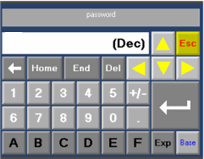
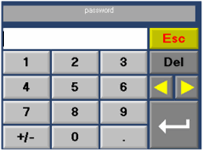
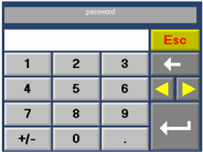
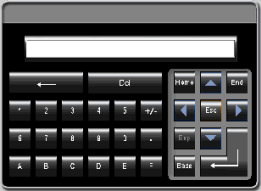
When you create a variable that requires the operator to enter data, you can select one of the three keypad types shown in the following table type. The type is reflected in SI 49.
Value: SI 49 |
0 |
1 |
257 |
V350 V570 |
|
|
|
V1040 V1210 |
|
|
|
Projects may be converted from the:
From monochrome to color Project>Convert Project to Color.
The following table shows differences between keypad entry variables.
Feature |
Standard |
Enhanced |
Keypad Entry Variables |
SB 250 HMI key entry within limits (Standard Vision only) SB 251 Keypad entry exceeds limits (Standard Vision only) SI 249 Last Active Keypad Entry Var (Standard Vision only) SI 250 Currently active keypad entry (read/write) (Standard Vision only) SDW 10 Keypad entry variable value |
SB 92 Keypad Entry in Progress (ON during entry) (Enhanced Vision) SB 93 Keypad Entry Var Activates (ON for 1 scan) (Enhanced Vision) SB 94 Keypad Entry Var Complete (ON for 1 scan) (Enhanced Vision) SI 45 Numeric Key Entry Out of Limit - Counter of Attempts (Enhanced Vision) (Counts the number of failed attempts to enter a value) If a Legal Entry bit is defined, SB 94 does not turn ON if the entered value is out of range. The keypad stays on screen until a legal value is entered. You can use SI 45 in conjunction with a Compare function to exit the variable.
|
Active Keypad Entry (SBs) |
SB 32 HMI Keypad Entry in Progress (Standard Vision) rises during keypad entry |
SB 92 HMI Keypad Entry in Progress (Enhanced Vision) rises during keypad entry |
Keypad Entry: Focus |
After Keypad Entry, the next variable set in Variable Tab Order automatically becomes active. |
If SB 76 is OFF after Keypad Entry, the user must use the arrow keys to move to the next variable. Turning SB 76 on causes the next variable set in Variable Tab Order to automatically become active. |
Password Entry via HMI |
|
Legal Entry bit in Password Variable turns ON only when correct password is entered. The keypad stays on screen until a legal password is entered. To limit the number of wrong entries, you can use SI 45 in conjunction with a Compare function to exit the variable. |
Entering a legal keypad entry value |
SB 250 Keypad entry Within Limits turns ON for 1 scan |
SB 94 Keypad Entry Var Complete + Keypad entry property: Legal Entry MB
|
Entering an illegal keypad entry value |
SB 251 Keypad Entry Exceeds Limits turns ON for 1 scan |
|
Active Keypad Entry Variables (SIs) |
|
SI 250 Last Active Keypad Variable and SI 251 Currently Active Keypad Entry contains the number of the relevant DLU. |
Keypad Vars Locked |
|
|
Enter ASCII value |
|
Currently Active Keypad Entry |
Both the V120 and V130 are highly compact controllers with built-in on-board I/O configurations, and may be used in similar applications. However, applications written for the V120 may not be 'plug-and-play' for the other, and may have to be adapted. This is because these controllers belong to different Vision Controller Divisions; V120 is a Standard Vision, whereas V130 is a member of the Enhanced Vision division.
Certain system operands that are relevant for the V120 may not function or may function differently. These differences are explained in the following sections.
In addition, please note that the method of data entry (using the keypad to enter data into Keypad Entry Variables) is different.
You can convert V120 projects to V130 by using the utility Project>Convert Project to V130.
|
MODBUS is fully supported; however, to adapt V120 applications you must change the slave addressing scheme as described in the MODBUS Help topic Slave Addressing. |
Feature |
V120 |
V130 |
Up/Down keys |
Up arrow: linked to SB 41, down arrow to SB 46 |
Up arrow: linked to SB 55, down arrow to SB 56 |
Keypad entry 'logic' |
||
Entry to Display with keypad entry variables |
The first variable set in Variable Tab order is active and blinking. |
No variable is active; press Enter to activate the first variable set in Variable Tab order. |
Time Variables, Day of Week/Month |
|
Pressing Enter selects the highlighted day; at the end of a row, pressing Enter jumps to the start of the same row. Navigate between the rows via the Up/Down buttons. When Entry is complete, press the ESC key, then move to the next variable via the right arrow key. |
Moving between variables |
Press Enter after enter a value; use the right arrow key to move to the next variable. |
After pressing the ESC key to signal Entry complete, use the right/leftarrow keys to move between variables. |
ASCII keypad entry: upper/lower case |
During entry, pressing the < i > button changes toggles the case. |
Press the up arrow for upper case; the down arrow for lower case. |
F1 and F2 keys |
Do not exist |
F1 is linked to SB 58, F2 to SB 59. |
Feature |
V120 |
V130 |
Call Subroutine |
A single net can include 2 Call Subroutine functions |
A single net can include only 1 Call Subroutine function |
Load HMI Display |
A single net can include 2 Load HMI Display functions |
A single net can include only 1 Load HMI Display function |
Feature |
V120 |
V130 |
Load Subroutine |
SB 33 Load Display with linked Call Subroutine turns ON for 1 scan |
Each Display is linked to 3 subroutines:
|
Unload Subroutine |
SB 34 UnLoad Display with linked Call Subroutine turns ON for 1 scan |
|
What is current Display? |
According to SI 252 Current HMI Display Number |
Use Ladder function HMI>HMI Display Loaded (SI 252 not relevant) |
What was Previous HMI Display? |
According to SI 251 Previous HMI Display Number |
Use Ladder function HMI>Is Last HMI Display Loaded (SI 252 not relevant) |
Moving Images |
Supported |
Not supported. Are removed when the project is converted |
Variables |
||
Day of Week/Month |
These variables occupy less screen area in V120. |
When converting an application from V120 to V130, you must manually resize these variables |
Hide/Invert Variable |
Use the Ladder elements Invert/Hide Var |
Use the Hide or Inverse /view bit in the Variable's properties |
Global Variables |
Supported |
Not supported; each Global Variable is replaced with a separate variable when the project is converted |
Keypad Entry Variables |
SB 92 Keypad Entry in Progress (ON during entry) (Enhanced Vision).. SB 93 Keypad Entry Var Activates (ON for 1 scan) (Enhanced Vision).. SB 94 Keypad Entry Var Complete (ON for 1 scan) (Enhanced Vision).. SB 250 HMI key entry within limits (Standard Vision only) SB 251 Keypad entry exceeds limits (Standard Vision only) SI 249 Last Active Keypad Entry Var (V120, V230, V260, V280, V290 BW only) SI 250 Currently active keypad entry (read/write) (Standard Vision only) SDW 10 Keypad entry variable value |
SB 92 Keypad Entry in Progress (ON during entry) (Enhanced Vision) SB 93 Keypad Entry Var Activates (ON for 1 scan) (Enhanced Vision) SB 94 Keypad Entry Var Complete (ON for 1 scan) (Enhanced Vision) |
Active Keypad Entry (SBs) |
SB 32 HMI Keypad Entry in Progress (Standard Vision) rises during keypad entry |
SB 92 HMI Keypad Entry in Progress (Enhanced Vision) rises during keypad entry |
Keypad Entry: Focus |
After Keypad Entry, the next variable set in Variable Tab Order automatically becomes active. |
If SB 76 is OFF after Keypad Entry, the user must use the arrow keys to move to the next variable. Turning SB 76 on causes the next variable set in Variable Tab Order to automatically become active. |
Password Entry via HMI |
|
Legal Entry bit in Password Variable turns ON when correct password is entered. |
Entering a legal keypad entry value |
SB 250 Keypad entry Within Limits turns ON for 1 scan |
SB 94 Keypad Entry Var Complete + Keypad entry property: Legal Entry MB
|
Entering an illegal keypad entry value |
SB 251 Keypad Entry Exceeds Limits turns ON for 1 scan |
|
Active Keypad Entry Variables (SIs) |
|
SI 250 Last Active Keypad Variable and SI 251 Currently Active Keypad Entry contains the number of the relevant DLU. |
Keypad Vars Locked |
Enhanced Vision (V130 only) Turned ON by user |
Turn ON to lock all keypad entry variables. |
Enter Display with locked Keypad Entry Variables |
In Ladder application, set SB30 |
Same |
Enter ASCII value |
Currently Active Keypad Entry |
When a user enters a value via keypad, by default pressing the Left/Right arrows jumps between the keypad entry fields. To use the Up/Down arrows instead, set SB 109 to 1. |
||||
# |
Description |
Turns ON : |
Turns OFF : |
Reset by: |
SB 109 |
V130
only. |
User Program |
Default. User Program |
User |