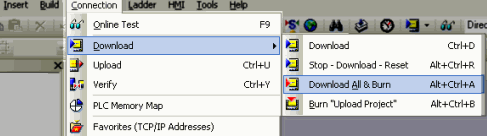
Click Download  on the Standard toolbar, or select an option from the Connection>Download menu.
The downloading process begins.
The Download process transfers your project from the PC to the controller.
Build> Build All should be done before download, in order to locate project errors.
Standard Vision:
These support OS download via COM1, using a direct PC-PLC connection: connecting the controller to the PC with the MJ10-22-CS25 programming cable.
Direct Connection must be selected in Communicate with OPLC.
Download via modem is also supported. The recommended baud rate is 57,600.
Enhanced Vision
In addition to the modes listed above, these also support download via COM2, Ethernet, RS485, and CANbus bridge. The recommended baud rate is 115,200.
ERROR: Variable (USBprogramming) is undefined.
These also support download via USB cable (Type A to mini-B). COM port 1 function is suspended when the USB port is physically connected to a PC.
Note that you must install the USB driver provided by VisiLogic.
The recommended baud rate over USB is 115,200.
Connect the controller to the PC.
Click Download on the Standard toolbar, or select an option from the Connection>Download menu.
The downloading process begins.
|
Note ♦ |
Use Remote Access to establish a communication line via modem or network. |
Note that Vision controllers contain two types of memory:
RAM (Random Access Memory)
The controller uses RAM memory to run the application, make calculations, and manipulate data.
RAM memory is volatile. This means that it requires power in order to maintain stored data.
Data stored in RAM:
The application, operand values, variable values, and Data Table sections that are not marked Part of Project.
This data, as well as the RTC, is backed up by the battery.
FLASH (Flash Erasable Programmable Read-Only Memory)
The controller uses FLASH memory for data storage. and to store backup applications.
FLASH memory is 'non-volatile'. It does not require power in order to maintain stored data.
Data stored in FLASH:
Data Table sections that are marked Part of Project and Back-up applications, including applications that can be uploaded.
|
|
In order to make sure that your PLC can recover its application in the event of total power loss--including battery failure--you must back up your complete application in the FLASH memory. Note that this is the default Download mode for all divisions, for VisiLogic 9.3.0 and up. If you To do this, use one of the following options from the Connection>Download menu, which differ according to the Vision Division you controller belongs to:
|
|
|
Creating an Upload application file If the PLC contains an upload file, you can upload and edit it using VisiLogic. To create an upload file, use one of the following options from the Connection>Download menu:
|
|
Note ♦ |
Reset Controller at Download
In the following cases, the controller may request reset
|
|
Option |
Comment |
Keystroke |
|
Download |
When you download an edited application to the PLC,select this option to download changes alone. If there are many changes, the PLC may request Reset.
Standard Vision:This option burns an Upload file to the PLCs' FLASH memory.
|
Ctrl + D |
|
Stop-Download-Run (Standard only) |
Automatically returns PLC to RUN mode after download. If there are many changes, the PLC may request Reset. |
Alt + Ctrl + D |
|
Stop-Download-Reset |
Forces Reset after download. |
Alt + Ctrl + R |
|
Download All & Burn (Enhanced only) |
Back ups the new application in the PLCs' FLASH memory. Forces Reset after download. |
Alt + Ctrl + A |
|
Burn 'Upload Project' (Enhanced only) |
Enables the entire project to be uploaded from the Vision PLC. Forces Reset after download. |
Alt + Ctrl + B |
|
Download and Create Download file |
See topic Download and Create Download file. |
none |
Connect the controller to the PC.
Select Upload icon from the Connection menu; the Vision Communication PC Settings window opens.
Select the connection type and click Exit; the uploading process begins.
Upload copies the complete project from the controller into the PC.
Via Project Properties, you can apply upload and download options:
Assign a project password. Password protection requires users to enter a password before uploading a project to a PC.
Prevent project upload.
|
Note ♦ |
Security restriction: if a PLC operator enters a wrong password 9 times, the PLC automatically disables program upload for that program.
Resetting the PLC will enable you to try another 9 times.
The limit set on password entry is intended to provide an additional layer of security. For example, this can prevent a hacking script from entering a networked PLC, since the number of attempts is limited and such a script would not reset the PLC. |
Project upload may have been disabled. In this case, the controller displays the following message at upload: "This project cannot be uploaded because:
- the option 'Burn Upload Project' was not selected when the project was downloaded,
or
- due to incomplete data in the PLC", and upload fails.
You are not entering the correct Upload password set in the Project Properties of this project.
If your PC contains only USB ports, and your OPLC does not offer a USB port, you can connect a Unitronics OPLC via a compatible, external USB-to-serial converter.
Unitronics offers a USB-to-serial converter that has been tested for compatibility with OPLC controllers. This converter can be ordered from local Unitronics distributor, using part number MJ10-22-CS35.

 Enhanced Vision: This option does