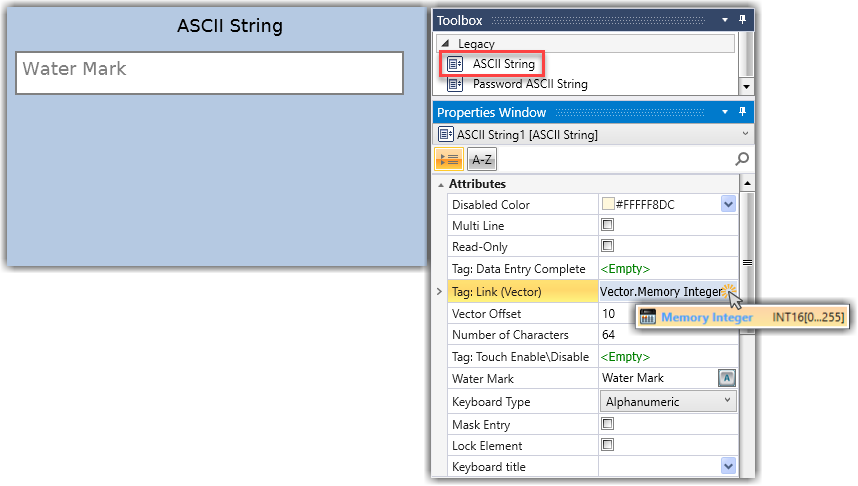
The ASCII String element allows you to display values stored in an array of integers. The value of each byte in the vector is displayed as an ASCII character.
|
ASCII String Attributes |
|
|
Disabled Color |
The Disabled Color is applied to an element when the Touch Property Control bit is OFF. To change the default color, click the drop-down arrow on the right and select a color. |
|
Multi Line |
The Multi-line property:
|
|
Read-Only |
Read-only is checked by default. To enable the end-user to enter data,
you must uncheck Read-only.
|
|
Tag: Data Entry Complete |
The linked bit turns ON when the data the user has entered either:
|
|
Tag: Link (Vector) |
Link to an array-type data tag. The string will be extracted from the array as ASCII characters. |
|
Vector Offset |
Defines the starting index within the vector (default 0). Range 0-1023 |
|
Number of Characters |
The number of characters determines the length of the vector - relative to the byte length of the data type (default 15 characters long). Range 1-64 |
|
Tag: Touch Enabled/Disabled |
The Touch property of this element is enabled by
default. |
|
Water Mark |
A Water Mark is the default text displayed in an element. You can edit it to instruct the user. |
|
Keyboard Title |
When the user enters data for this HMI Element, the virtual keyboard will open. |