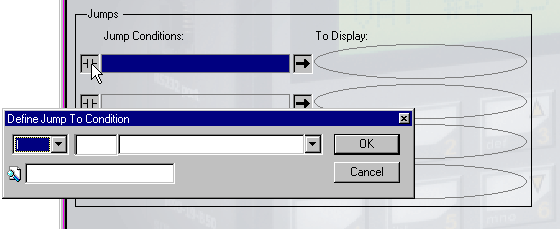
Display Jumps allow you to move between Displays via the keypad or any bit positive transition. You can create up to 4 Jumps for each Display in the Display Editor. If you want to create more than 4 Jumps for a Display, you must create the logic conditions in the Ladder Editor.
To create a jump:
Click on a Jump Condition and the Define Jump to Condition dialog box opens.
Select a Jump Operand from the drop-down menu.
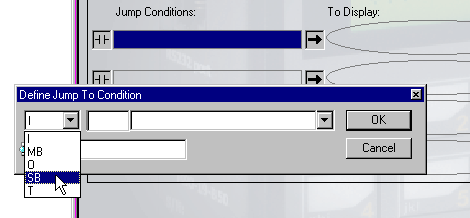
Enter the desired Address and symbol for the Jump Operand. Click OK.
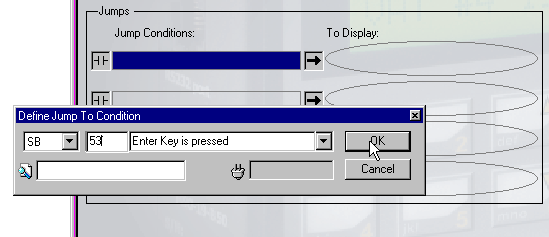
The Define To Display Jump dialog box opens.
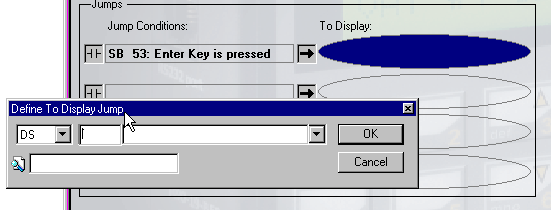
Enter the Display number to which you want to jump. Click OK.
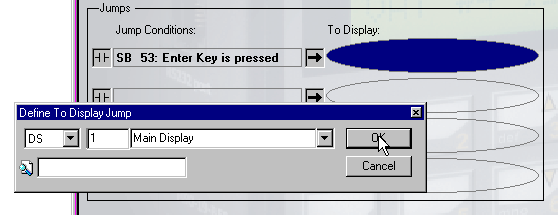
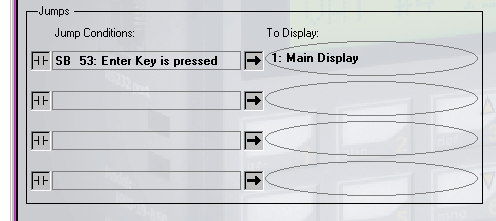
The result will be:
Note that Display Jump conditions based on MBs can only be linked to MB 0-127; jumps may not be linked to MB 128 -255.
Note ♦ When an HMI keypad entry variable is active, and the Enter key is pressed on the controller keypad, SB 30 HMI Keypad Entries Complete turns ON. This can be used as a Jump condition.
In addition , note that a Display may contain a total of 4 variables. Each one has an SB:
SB 31 HMI Var 1 Keypad entry completed
SB 32 HMI Var 2 Keypad entry completed
SB 33 HMI Var 3 Keypad entry completed
SB 34 HMI Var 4 Keypad entry completed
The condition of these SBs may be used as Jump Conditions, or to drive calculations in your program.