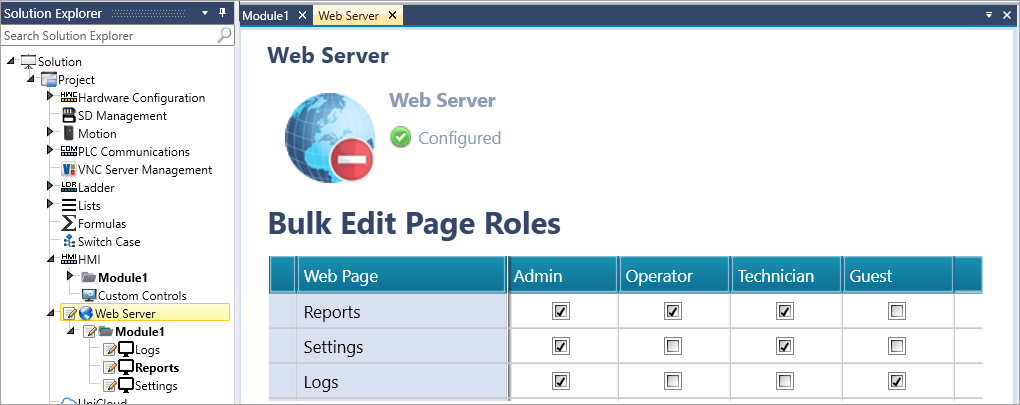
The Panel IP address is the one used by the web server; configure it to meet your requirements.configure it to meet your requirements.
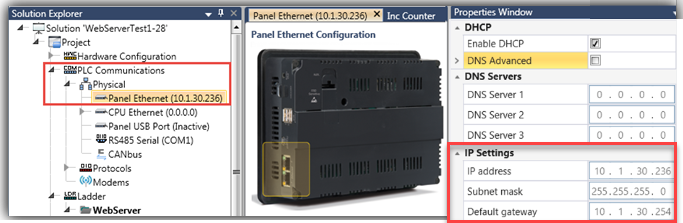
Use the Web Server's Security settings to control page access with roles and users; the Bulk Role Editing panel lets you assign permissions across all pages and roles from a single matrix view.
|
The Panel IP address is the one used by the web server; configure it to meet your requirements.configure it to meet your requirements.
|
Select Web Server from the Solution Explorer.
Click the green plus sign to enable the Web Server.
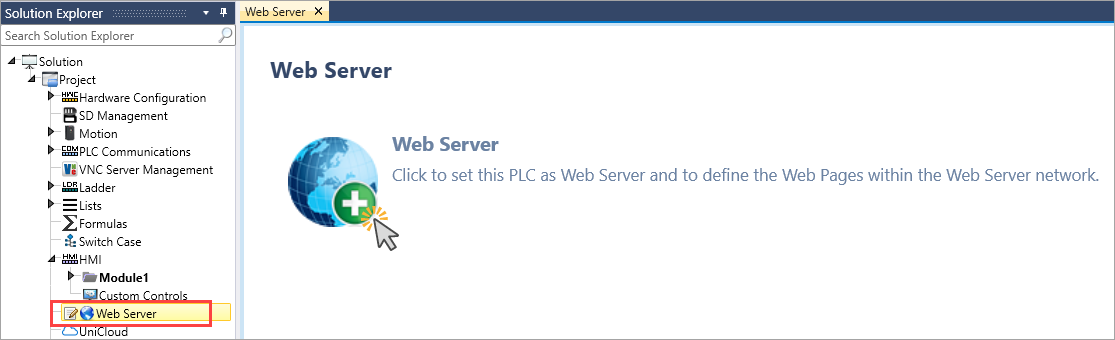
UniLogic will automatically open the Web Page Editor.
You can configure additional Web Server properties at any time by clicking Web Server from the Solution Explorer to open the Properties Window.

Use the Properties Window to set general Attributes and to configure Security.
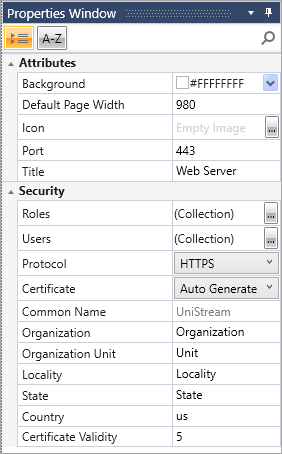
Use Security to require users to enter a password before accessing web pages, ensuring that only authorized personnel can view sensitive data.
Create a collection of Roles that define different access levels.
Create list of Users, assign a Role and a password to each user.
When designing web pages, assign security permissions to individual pages according to your requirements, controlling which Roles can access specific pages.
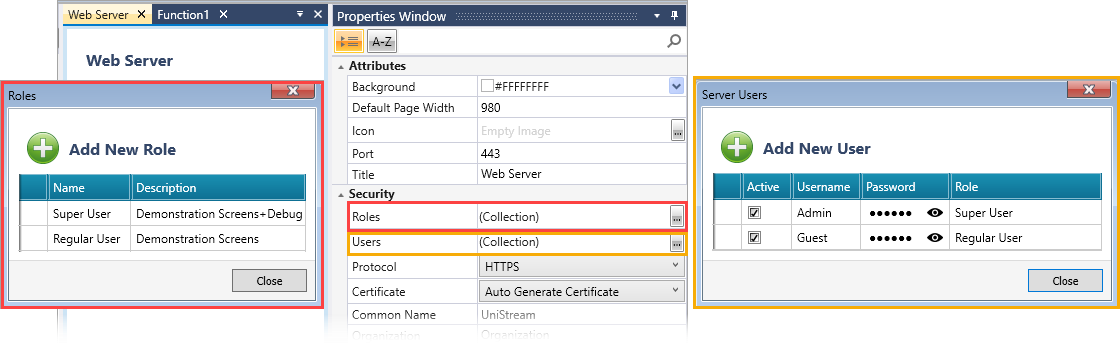
Secure your web server communications with industry-standard encryption. Click to open the Protocol drop-down list to select between:
HTTP: Standard web protocol for non-sensitive applications
HTTPS: Encrypted web protocol for secure data transfer and user authentication
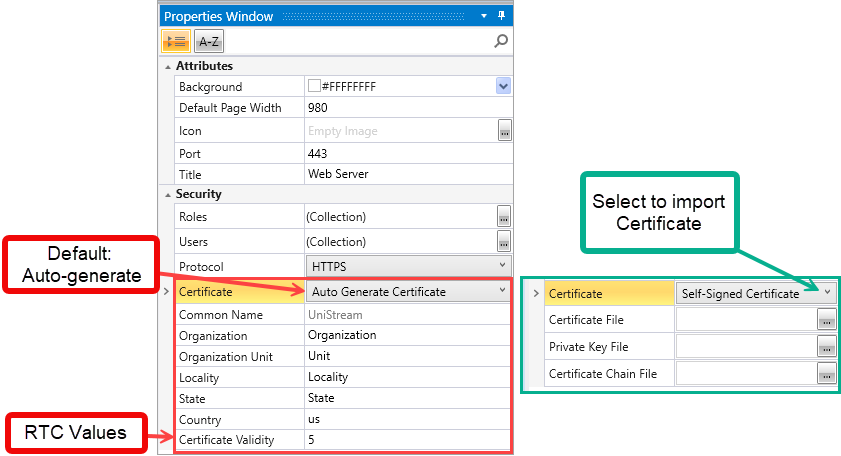
Select the Certificate type that best fits your security requirements.
By Default, the Certificate is auto-generated; click to open the drop-down list to import a certificate. You'll need to first upload your own certificate files.
Note that the RTC in the PLC must be set correctly in order to correctly implement the Certificate Validity.
You can enable a user who has logged in to change his user password via element Actions.
When you have multiple web pages and roles defined, use the Bulk Edit Page Roles panel to easily control which roles can access each page.
The matrix updates automatically when pages or roles are added, removed, or renamed.