ST Editor
The ST editor provides a full-featured environment for writing IEC 61131-3 Structured Text programs.
It supports autocomplete, inline diagnostics, online editing, and direct integration with UniLogic tags.
ST Editor Basics
The ST editor supports standard editing features:
-
Paste code from external editors (Notepad, VS Code, etc.) with indentation preserved.
-
Select one or more lines and press Backspace or Delete to remove them.
-
Auto-complete suggests tag names and function keywords as you type.
-
Parameter hints (overload window) appear automatically when you open a function call's parentheses.
Working in the ST Editor
-
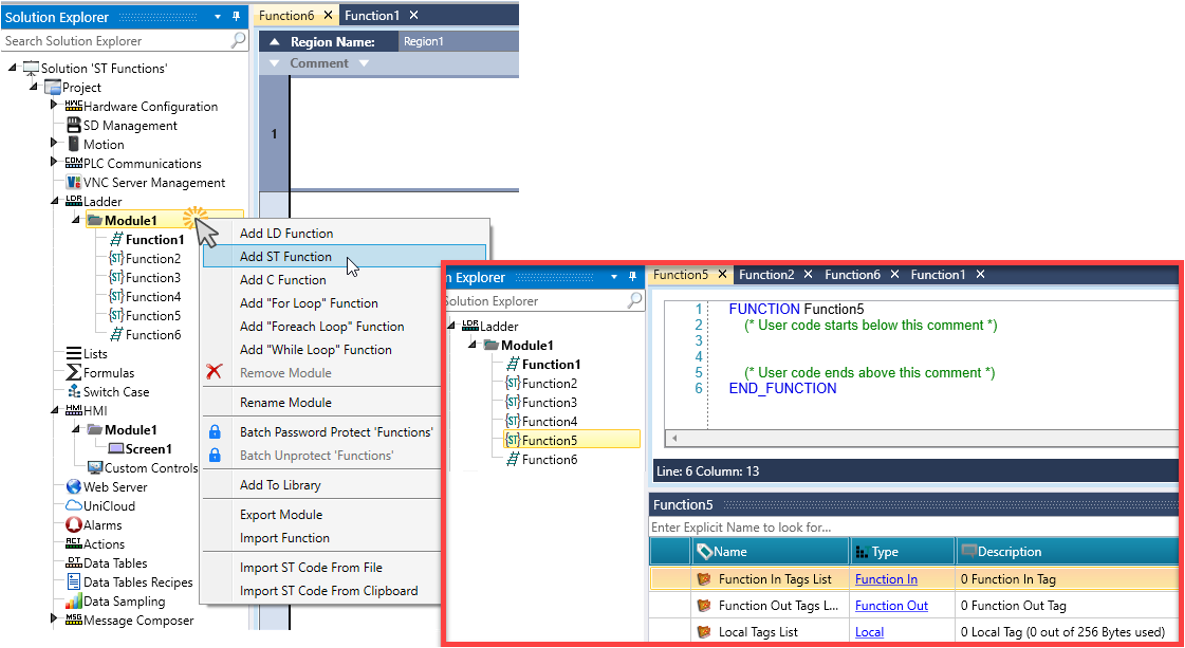
To create a Structured Text function, right-click a module in the Solution Explorer and select Add ST Function.
-
UniLogic adds the function and opens the ST editor. The function appears with an ST icon; you can right-click it to rename.
-
Add FunctionIn/Out/Local tags to define the function interface.
-
Write code below the (*User code starts below this comment) line.
-
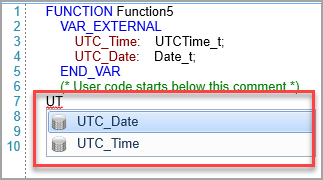
Use autocomplete: begin typing a tag or function name and click when it appears.
-
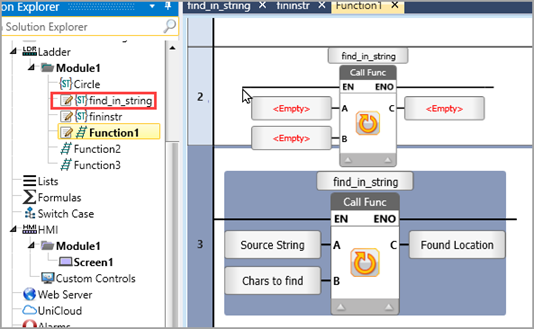
Drag & drop the ST function to the Ladder, and link tags to contain the values.
-
Download and run the program.
Including Global Tags
To access global tags inside an ST function without passing them as parameters:
-
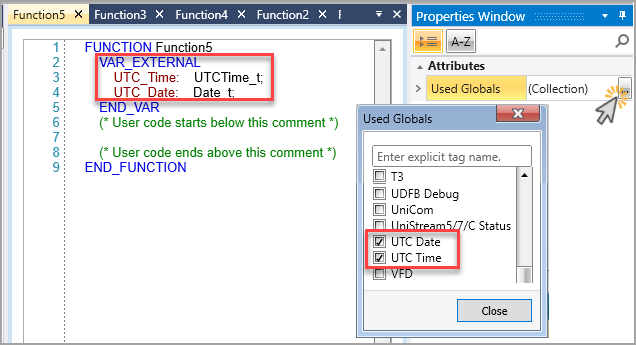
In the Properties Window, click Used Globals.
-
Start typing the global tag name and select it from the list.
-
Click Close. The tag is added as VAR_EXTERNAL and available in code.
-
In the editor, start typing the tag name and click to insert it.
Variable Creation On-the-Fly
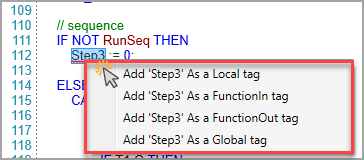
You can create variables directly from the ST editor by right-clicking any identifier in the code. The context menu options depend on whether the identifier is new or already exists elsewhere in the project.
-
Right-click a new identifier to open the context menu.
-
Select the required option:
-
Add as a Local tag - creates the variable in the function's local VAR block. Displayed in black in the editor.
-
Add as a FunctionIn tag - creates the variable as a function input parameter.
-
Add as a FunctionOut tag - creates the variable as a function output parameter.
-
Add as a Global tag - creates the variable as a global tag. Displayed in burgundy in the editor, and added as VAR_EXTERNAL in the function.
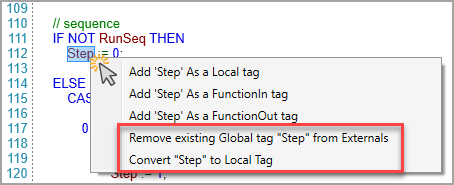
If the identifier already exists as a global tag in the project, additional options are available:
 |
Variable creation is supported during online editing. The editor will prompt for the type.
|
Parameter Hints (Overload Window)
The ST editor displays parameter hints while typing function calls to help you enter parameters correctly, view available overloads, and identify the expected parameter types.
-
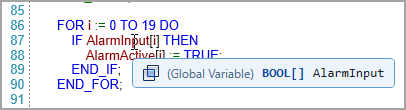
Hovering over a parameter displays the variable scope, data type, and variable name.
-
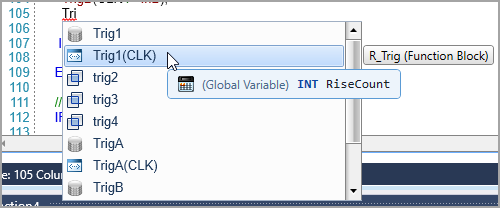
Auto-complete suggests tag names and function keywords as you type; press Enter or click to accept.
-
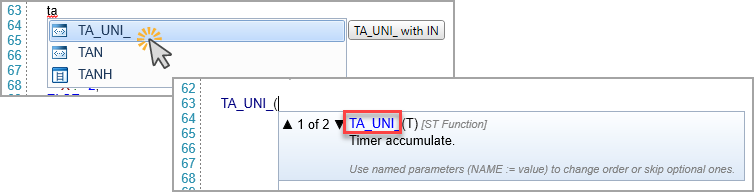
Selecting a function from the autocomplete list opens the hints window automatically, highlighting the currently edited parameter.
-
Alternatively, typing ( after a valid function name opens the hints window. Pressing Esc or typing ) closes the window.
-
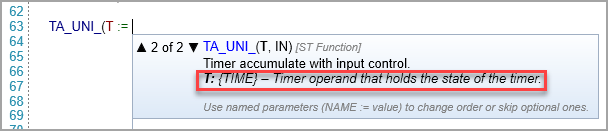
Use the arrow keys to navigate through available overloads.

-
Named parameters (NAME := value) appear in autocomplete and update the highlight.
Functions with Multiple Overloads
|
|
|
|
BITS_TO_NUM
|
Variable number of bit inputs
|
|
NUM_TO_BITS
|
Variable number of bit outputs
|
| ARRAY_FIND |
Optional start index parameter
|
|
ARRAY_MAX
|
Optional range parameters
|
|
ARRAY_MIN
|
Optional range parameters
|
|
ARRAY_SORT
|
Optional direction parameter
|
Online Editing in QuickSync Mode
The ST editor supports editing while the controller is in Online + QuickSync Mode, consistent with how Ladder is edited online.
|
Editing local variable values online is not supported - only declarations.
|
Note that any edits made during Quick Sync are not incorporated into the project until you save the project (File > Save or Ctrl+S).
Online Diagnostics
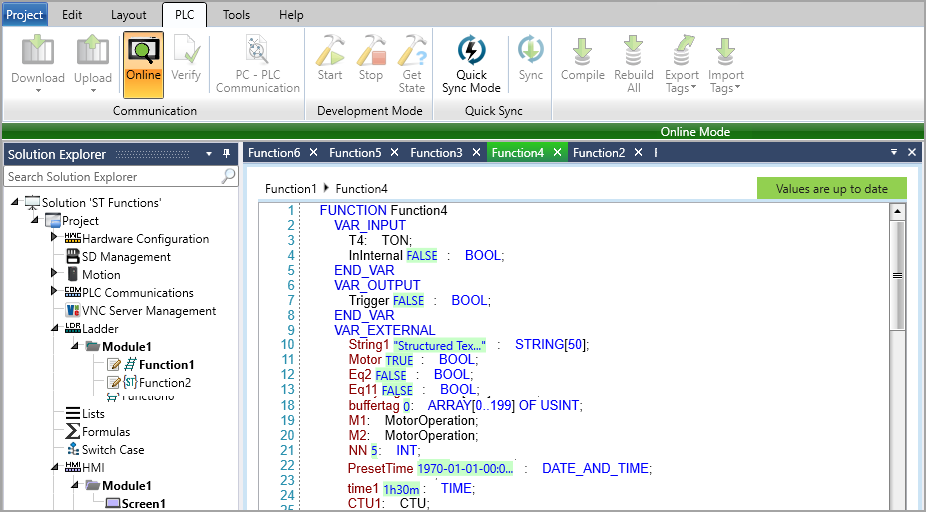
When connected online, the ST editor displays live variable values directly in the code view.
Display Behavior
|
|
|
|
BOOL
|
TRUE or FALSE inline
|
|
TIME
|
Formatted (e.g., 5s, 1h30m)
|
| DATE_AND_TIME |
Human-readable (e.g., 2025-06-01-08:30:00)
|
|
INT / REAL
|
Numeric value
|
|
STRING
|
String value in quotes
|
|
-
Tag search is case-insensitive
-
Global tags appear in burgundy; local tags in black
-
TIME values can be entered online without the T# prefix
|
Monitoring a Specific Function Call
When a reusable Function is called more than once, each call runs with its own Local, FunctionIn, and FunctionOut values.
You can navigate to and monitor a specific call directly from ST, matching the equivalent capability already available for Ladder function call blocks.
-
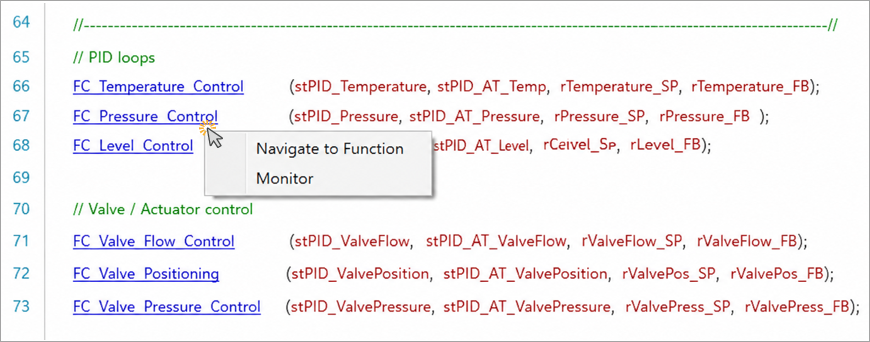
Calls to user-defined Functions appear as clickable links (blue, underlined) in the ST editor.
-
Calls to built-in/system functions (e.g., TO_UDINT) are not clickable, since they have no user-defined Function body to monitor.
Click (or right-click) a call to a user-defined Function to open a menu:
-
Navigate to Function - opens the called Function in the editor. Always available.
-
Monitor - opens the called Function in Online Monitor mode, showing the FunctionIn, FunctionOut, and Local tag values for that specific call. Available only when Online, and only from a function that is either the one currently being monitored, or the startup function.
Related Topics
ST Language Reference
ST Function Library
IEC Function Blocks