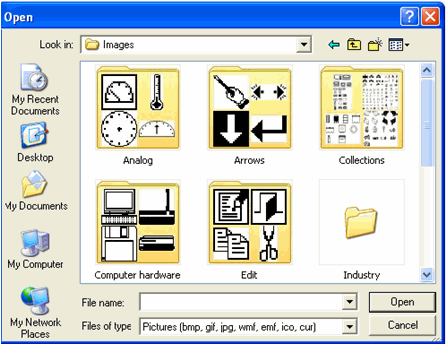
A library containing hundreds of images can be found in the Unitronics folder on your hard drive
(Unitronics\VisiLogic\Data\Images).
This makes it easy to locate and import images into your displays.
|
Note ♦ |
An imported image cannot exceed the size of the controller's display screen listed in the model's technical specifications. For example, the V230's Display screen is 128x64 pixels, therefore an image of 100x100 pixels cannot be used unless it is resized in a third-party utility such as Paint. |
|
♦ |
Clicking any HMI image in a Display will open the Image Library; to open the image for editing In Paint, click the Paint icon on the lower left side of the Library frame. |
For tips on how to edit images to best suit the controller's Display screen, first read the Help Topic Creating Images with Microsoft Paint, and then view the demo located on the VisiLogic setup CD: Edit Image Collections with Paint Step 1.exe.
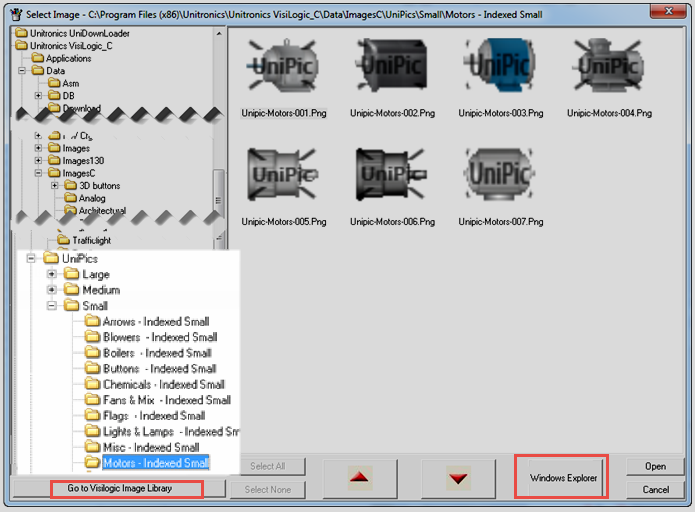
The images in the UniPics Image Library are .pngs. Each image is available in three sizes and are organized in folders: Large, Medium, and Small.
The images in the large folder are suited for display on controllers with larger screens such as the V1210, V1040, and those offering 7" screens; images in the medium and small folders are suited to smaller screens such as V350, V430, Samba S35/43, and those offering 5" screens.
As a general guide, an image in the Large folder that is 150 x 150 pixels, will be 75 x 75 in the Medium folder and 38 x 38 in the Small folder.
This can help you to use images that do not require resizing, and are optimally displayed on the screen.
To access UniPics when you insert Display images, click the Go to VisiLogic Library button on the bottom left of the Select Image window and scroll down until UniPics appears in the Explorer.
Note ♦ |
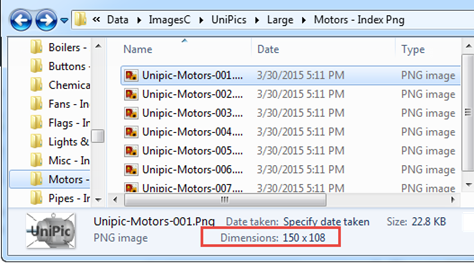
To view the exact image size, you can click the Windows Explorer button on the bottom right of the Select Image Window. |