Project properties include:
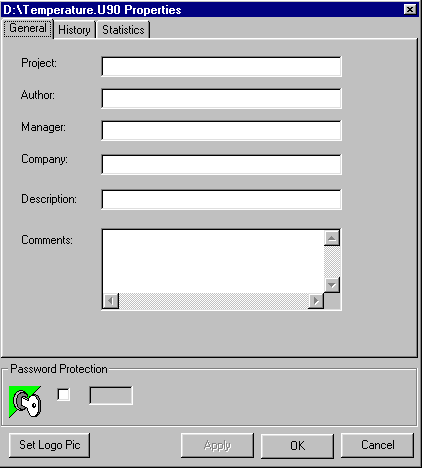
General information, including password protection
History
Statistics
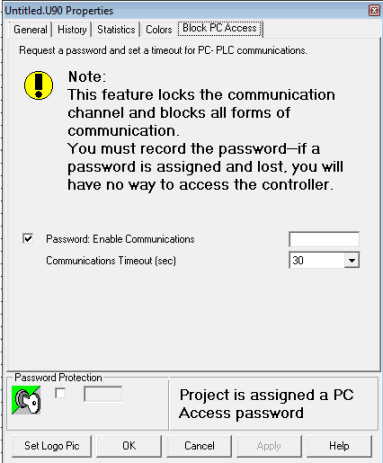
Block PC Access
To access program properties
Display project properties by selecting Properties from the Project menu. The project Properties box opens.
Select property topics by clicking the tabs.
When you select General, the fields are blank. You enter all of the project information manually. An example is shown below.
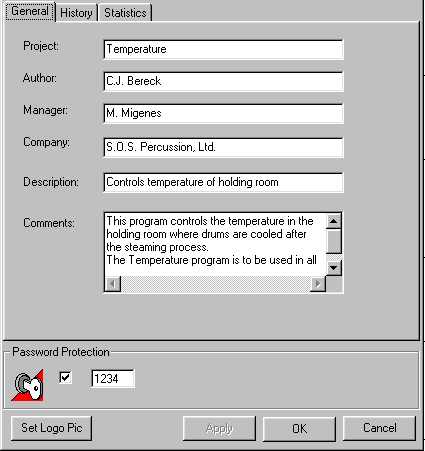
You can apply password protection to your program. This will prevent anyone who does not have the password from uploading the program from the PLC.
|
Note ♦ |
Security restriction: if a PLC operator enters a wrong password 3 times, the PLC automatically disables program upload for that program. |
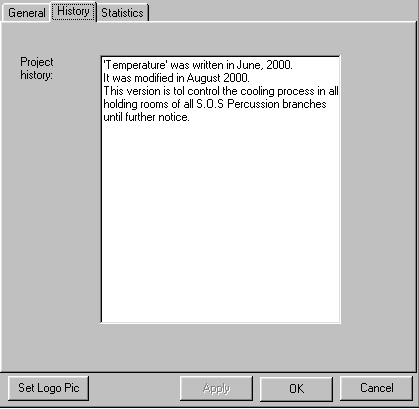
When you first open History, the field is blank. Enter the desired text as shown below.
When you open Statistics, the progress bars show how much of the project's available space is in use. The statistics update automatically.
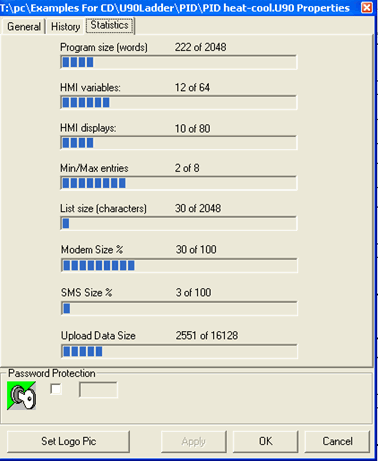
You can also import your company's logo into your project. Then, when you print sections of your project, the logo will be printed at the top of each page.
You can assign a password that prevents any communication channel from being opened to the PLC. If you enable this feature and assign a password to the channel, any attempt to communicate with the PLC will result in a request to enter a password.
From the time that the password is entered, communications must be established within the time set in the parameter Communications Timeout, or the password must be re-entered.
Note that communications may be established without password via the application containing the password that was downloaded to the PLC.
 You must record the password. If the password is lost, you will have no way to access the controller.
Other Communication Applications (Remote Access)
In order to access the PLC's communication channel via other applications, such as Remote Access, you must activate the Enter Password request window by running JZ20_Communication_password.exe contained in:
C:\Program Files\Common Files\Unitronics
or
C:\Program Files (x86)\Common Files\Unitronics
Double-click JZ20_Communication_password.exe.exe, and enter the password. Note that you must establish communications within the time set in the parameter Communications Timeout.