|
|
Actions |
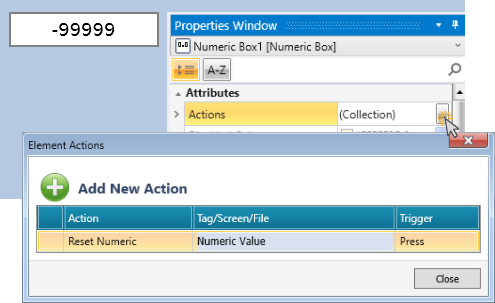
Actions enable a single Touch Element to trigger multiple events. Multiple bits can be linked to one element, triggering Load screen, set, reset, and toggle bits, and more.
-
Click Collection in the Properties Window.
-
In Element Actions, click Add New Action.
-
Select the Action; Tag, Screen or File, and the action Trigger.
|
|
Disabled Color
|
The Disabled Color is applied to an element when
the Touch Property Control bit is OFF.
To change the default color, click the drop-down
arrow on the right and select a color.
|
|
Format Numeral
|
Click to set display options for Base Format, Decimal Point Location, Number of Digits to Display, Thousands Separator, and Leading Zeros.
|
|
Numeric Value
|
The value of this tag determines what is displayed
in the HMI element.
|
|
Read-Only
|
Read-only is checked by default. To enable the end-user to enter data,
you must uncheck Read-only.
|
|
Tag: Data Entry Complete
|
The linked bit turns ON when an element has been touched, the keypad
has opened for data entry, and the user presses OK. The bit turns ON whether
or not any data has actually been entered. Note that the bit remains ON
until it is reset.
|
|
Tag: Enable
Data Entry
|
Assign a bit to allow you to enable or disable data entry.
|
|
Tag: Minimum Value
|
This contains the minimum permitted value. The value
may be provided by a tag or a constant.
|
|
Tag: Maximum Value
|
This contains the maximum permitted value. The value
may be provided by a tag or a constant.
|
|
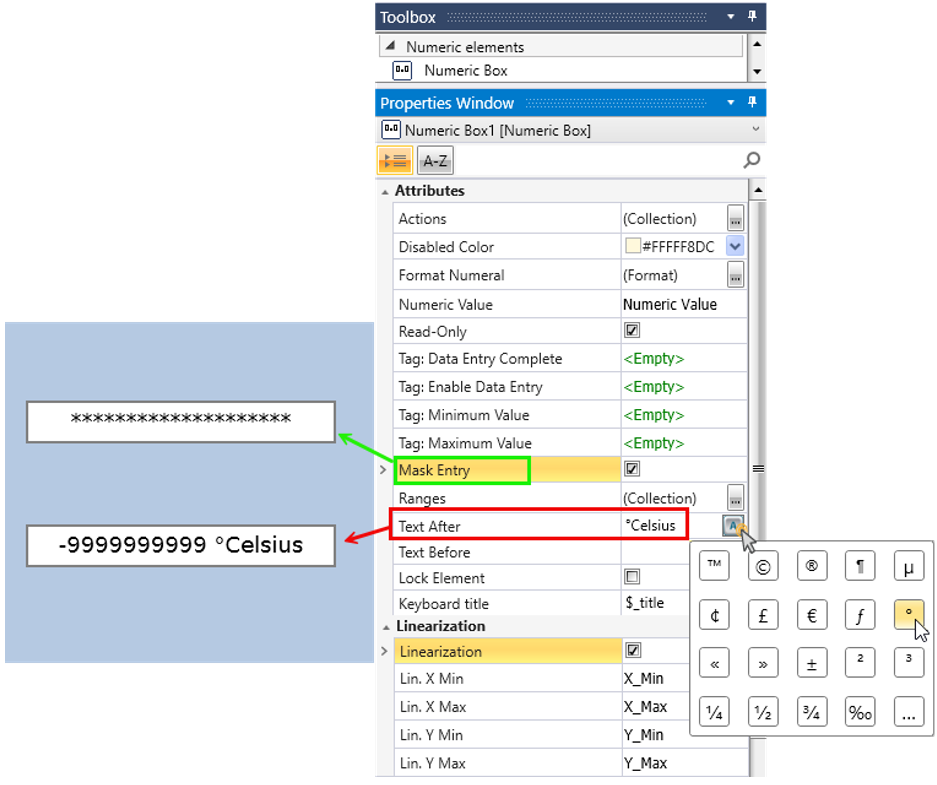
Mask Entry
|
To enable the end-user to securely hide numeric inputs, check the Mask Entry. When it's checked, the number of '*' matches the length of the numeric value, including the sign. |
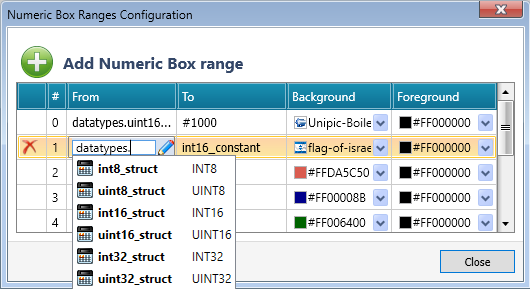
| Ranges |
Defines a set of ranges for the numeric box.
When none of the ranges match, the default background and Text Font foreground will be used.
|
| Text Before |
Enter any text you wish to set as a prefix to the numeral. You can also include special characters, such as a degree sign, by clicking the button on the right of the Text Before field. |
|
Text After
|
Enter any text you wish to set as a postscript / postfix to the numeral.
You can also include special characters, such as a degree sign, by clicking
the button on the right of the Text After field.
|
|
|
|
Linearization
|
When checked, the linearization option applies a linear transformation to numeric values.
Note that the value entered by the user is not directly stored in memory. Instead, the stored value corresponds to the input X required to achieve the specified output Y based on the linearization parameters.
|
|
Lin. X Min
|
This contains the minimum input value. The value may be provided by a tag or a constant.
|
|
Lin. X Max
|
This contains the maximum input value. The value may be provided by a tag or a constant.
|
|
Lin. Y Min
|
This contains the minimum output value. The value may be provided by a tag or a constant.
|
|
Lin. Y Max
|
This contains the maximum output value. The value may be provided by a tag or a constant.
|