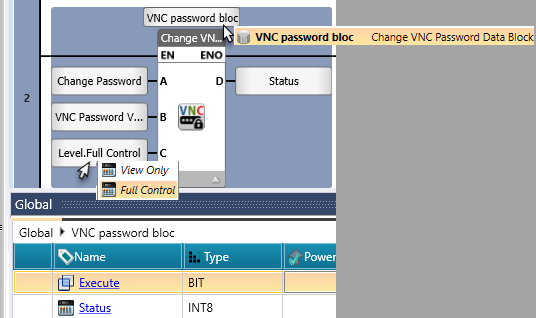
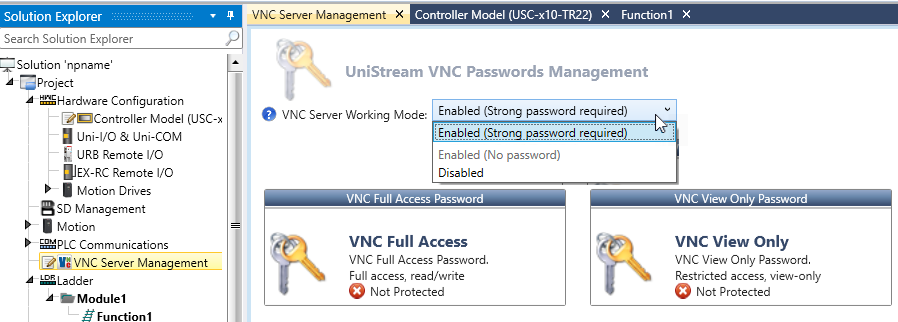
Click VNC Management on the Solution Explorer to enable VNC Server. Enabling VNC requires you to create a strong password, and causes the controller to request a password when a VNC client requests access. The option 'Enabled (No Password)' is disabled.
Note that up to 16 VNC clients can connect to a PLC; if the connection is via UniCloud, the maximum number of connections is 8.
Note that in Hardware Configuration, the following options are available for VNC sessions:
-
Override the VNC Configuration
-
UniStream PLC (USC) series controllers and UniStream Built-in: you can select either Landscape or Portrait.
Rotation is set to 90° by default. -
UniStream PLC (USC) series controllers: select the Panel Resolution that matches the intended display.
All screen elements are arranged according to this resolution.

-
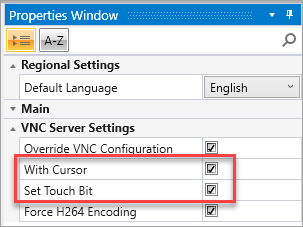
Enable visible pointer control and touch input functionality, ensuring compatibility with UniCloud.
-
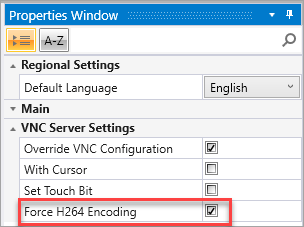
Select Force H264 Encoding to enable H.264 (Advanced Video Codec) support for VNC sessions, available for Built-in (US5, US7, US10, US15), and PLC (USC) series controllers. This can improve remote-screen responsiveness and reduce the network bandwidth required for VNC communication.
Note: To use this option, the connecting VNC client must support H.264 decoding. If the client does not support H.264 decoding, clear this option.
When disabled, the server uses standard encodings and any VNC client can connect.
Server Resolution: The VNC Server transmits the panel's own resolution:Model
Transmitted Resolution
US5, US7
800x480
US10
1024x600
USC
The Panel Resolution set in UniLogic
US15
1366x768
Note: Up-scaling to a higher resolution is no longer available. If the display on the viewer side is not the size you want, adjust the scaling from the VNC client.
-
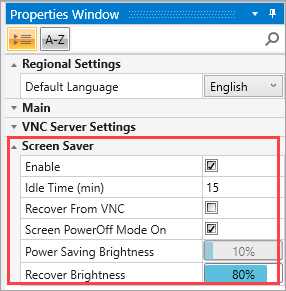
Select to enable Screen Saver mode in UniApps.
Configure the Idle Time (min) timeout to define how long the screen remains inactive before the screen saver activates.
Additional options include screen power-off, VNC recovery, and screen brightness.
When activated, the screen dims to the configured brightness level and remains dimmed until the screen is touched or reactivated via VNC recovery.