
To enable VNC Server on a UniStream Controller and set Passwords via UniLogic, click VNC Server Management on the Solution Explorer.
You can access UniStream using a VNC viewer from a computer, phone, or tablet with an Ethernet or mobile connection. To connect via VNC over a local network, connect to the Panel IP via port 5900. You can have multiple simultaneous connections to the same PLC.
Exiting a VNC session: To end a session, press and hold the top-left corner of the screen for 5 seconds. This applies to Built-in, PLC (USC) series controllers, and USL (USL5/USL7/USL10) displays.
You can assign connection levels:
View only: The user can view the PLC, but not control it via VNC viewer.
Full access: The user has full access to the PLC via the VNC viewer
|
|
To enable VNC Server on a UniStream Controller and set Passwords via UniLogic, click VNC Server Management on the Solution Explorer. |
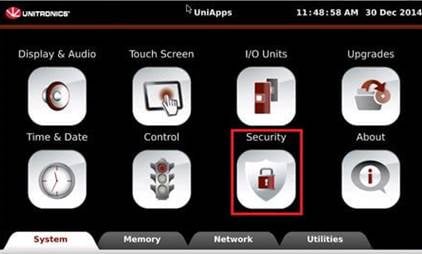
1. Open UniApps and press on the Security icon.
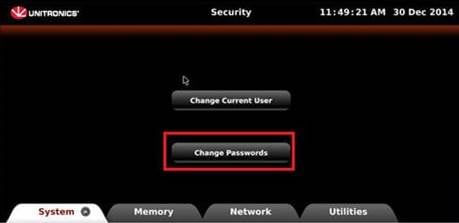
2. Press Change Passwords.
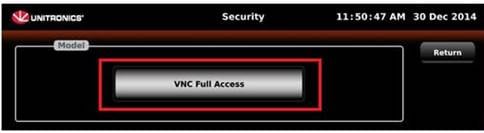
3. Under Model option, scroll to select the desired option.
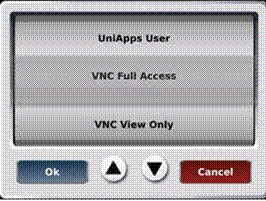
4. Select Create password and write the desired password.
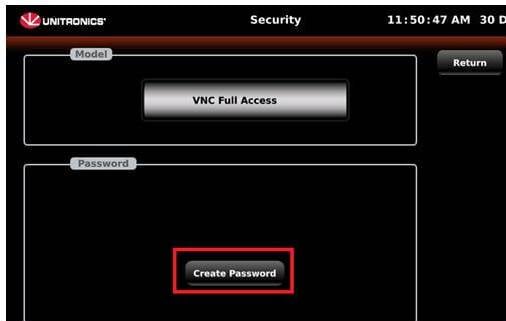
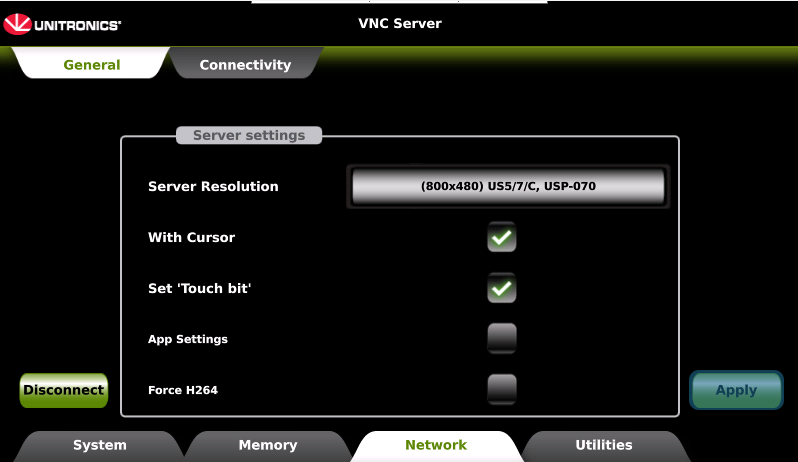
Note that you can enable UniStream to register when a connected VNC client screen is touched; this allows the use of UAC with idle time and screen saver. In UniApps access the Network tab-> VNC Server -> General. Press the Set 'touch bit' check box and press apply. The VNC server will restart with the VNC "touch" identification option enabled.
VNC Server
Under VNC Server> General, you can select options for your sessions.
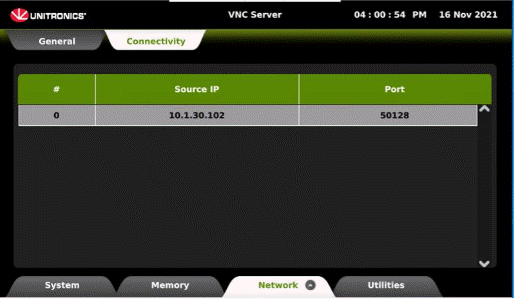
Under VNC Server > Connectivity, you can see a list of up to 8 connections. When the list exceeds 8, the controller automatically disconnects.
To configure a UniStream Built-in, PLC (USC) series controllers, and USL (USL5/USL7/USL10) displays, to act as a VNC Client:
In the Solution Explorer navigate to PLC Communications > Protocols > VNC Clients.

The following options are available:
Disable cursor (override server configuration): Select to disable visible pointer control and touch input functionality.
Auto Reconnect: Edit the timeout if required.
Force H264 Decoding: Select to enable H.264 decoding for the connection. When enabled, the PLC connects only to VNC Servers that transmit H.264; if the server does not use H.264, the connection will not succeed - clear this option to connect to such servers. There is no automatic fallback.