UAC: User Access Control
User Access Control, or UAC, enables you to require users to log in via the HMI application. You can then restrict a user's access to:
-
HMI elements, including whether an element is visible or enabled.
-
UniApps; note that activating UAC overrides Passwords.
UAC comprises:
-
Access Levels.
-
User Groups.
You assign each Group one or more Access Levels.
-
Users.
You can assign each User to a single Group.
The User inherits the Access Levels that are assigned to the Group.
-
Audit.
You can maintain a secure and compliant audit trail for regulatory requirements, ensuring traceability and integrity of records as mandated by 21 CFR Part 11.
-
HMI element property User Access.
You can assign each element a single Access Level.
Then, when a User logs into the system, UAC can identify that User, the Group to which he belongs and those Access Levels that have been assigned to that Group. UAC then restricts access according to those Access Levels.
Using UAC
-
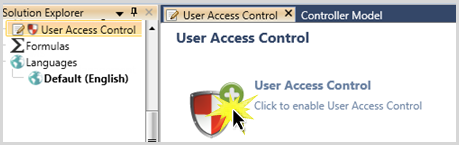
Click User Access Control on the Solution Explorer, and click to enable it. Note that when you activate UAC, UniLogic creates a struct that you can use to monitor/log events.
-
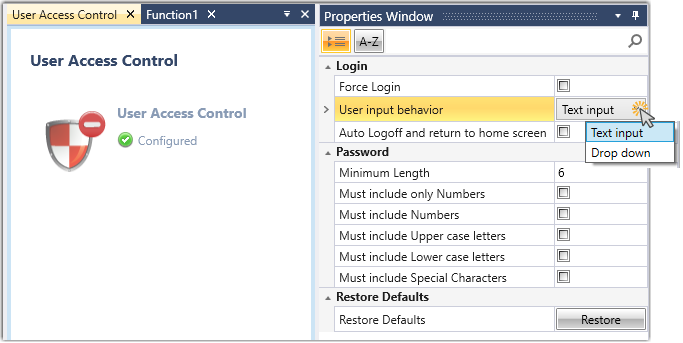
Define the general UAC Properties.
|
|
|
Login
|
Force Login
|
Check the box to open the login box automatically when:
If Force Login is not checked, the user will have to invoke the UniApps menu in order to log in.
|
|
User Input Behavior
|
Click to select
|
Select:
-
Text input to cause the user to type in the user name
-
Drop down, to allow the user to select the user name from a list.
|
| Auto Logoff and Return to Home Screen |
Force Logout
|
Check the box to force logout of any active user and return to the home screen when a new VNC session starts.
Note: to enable this functionality, you must:
|
|
Password
|
Minimum Length
|
This is the minimum length for a password, whether it is assigned via UniLogic, or changed via UniApps. The minimum is 4 characters, 6 by default.
|
|
|
Must Include only Numbers
|
Requires all password characters to be Numerals.
A numeric keyboard will be shown in the PLC.
|
|
|
Must Include Numbers
|
Requires Numerals in the password.
|
|
|
Must Include Uppercase Letters
|
Requires at least one uppercase letter (A-Z) in the password.
|
|
|
Must Include Lowercase Letters
|
Requires at least one lowercase letter (a-z) in the password.
|
|
|
Must Include Special Characters
|
Requires one of the following: !@#$%^&*()_+{}|~<>?/=
|
|
Restore Defaults
|
Clicking Restore deletes any properties that you have defined
|
-
Define Access Levels.
Note that Alias Name is a working name that you assign to help you organize Levels. Alias Name appears only within UniLogic.
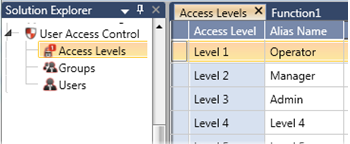
Note that you can right-click on a level to find where it is used in your application.

-
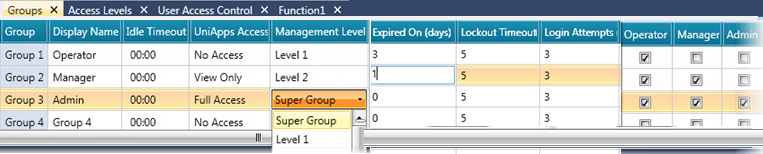
Define Groups.
UAC comes with three predefined Groups that are assigned Access Levels. You may add additional Groups according to the requirements of your application.
|
|
|
Group
|
When you assign a User to a Group, the User inherits the Access Level of that Group.
|
|
Display Name
|
You can assign a group a Display Name, which is the name that appears in UniApps and in UniLogic.
|
|
Idle Timeout
|
This determines the amount of time that a user may remain inactive before being logged out by the system.
|
|
UniApps Access
|
Note that once you implement UAC, only users who have access will be able to enter UniApps. For this reason, the system requires a minimum of one Group and one User with full access.
|
|
Management Level
|
Use Management Level to set the ability of group members to edit the properties of other members:
-
Super Group: a Super Group level can edit any and all properties of Users or Groups in UniApps, including the properties of other Super Group members. This can be very helpful in cases where Admin passwords have been forgotten.
-
Levels 1-15: members of any other level may modify the properties of the level below the one they belong to.
-
Level 16: cannot make any modifications.
|
|
Password
|
Note that passwords are not affected if the PLC battery fails.
|
|
|
The next three properties relate to password ageing and management.
A value of 0 disables the property.
|
Expired On |
This is the number of days a password will be in effect for a member of this group before it expires.
Note that:
-
The Expired On parameter is not automatically reset on Download. If you changed the number of days, you will be asked at download whether to reset, or to keep, the current value, and to continue to countdown of the number of days a password will remain valid for.
|
|
Lockout Timeout
|
If a user exceeds the number of Login Attempts set for this group, this determines the number of minutes the user will be locked out before being allowed to attempt to log in.
|
|
Login Attempts
|
This is the number of Login attempts a member of this group may attempt to login before being locked out.
|
|
Notes, Lockout Timeout and Login Attempts that:
-
The state of the battery does not affect these parameters; the values are stored internally and are saved even if the battery runs down.
-
These parameters are not automatically reset on Download, including if you download a program when a user account is locked out. You will be asked at download whether to reset, or to keep and continue, the current timeout of any locked accounts, and the count of the failed attempts.
-
If a user is locked out, PLC reset has no effect; at restart, the account remains locked, and the timeout count continues.
|
|
Levels
|
Check the levels that are appropriate for the Group.
|
-
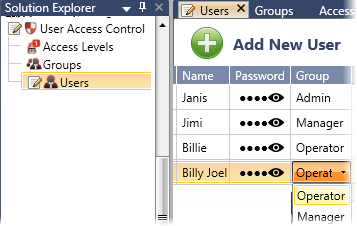
Define Users.
You enter Names, assign Passwords, determine if a user name will be displayed and if a user is allowed to change the password, and then assign each User to a single Group. You can also select, in the UniApps entry menu, to hide the Login option.
 Note that the number of Users is limited to 128.
-
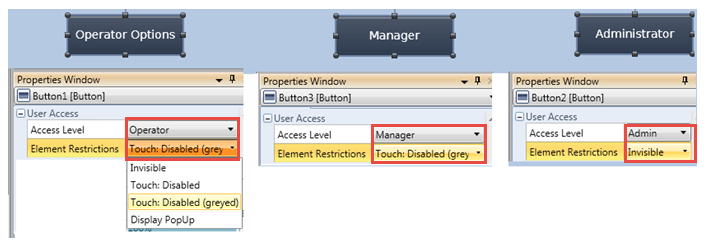
Assign Levels to your HMI Elements.
Note that the Level default, None, means that any user, logged in or not, can access that element.
HMI Actions
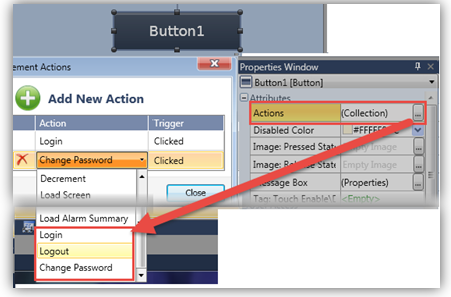
Activating UAC causes new HMI Actions to be added to the list: Login, Logout, and Change Password.
|

|
If you download your project to a controller that already has UAC activated, if you have added Groups, Users, or Levels, you must select Overwrite. Otherwise they will not be downloaded along with your project,
|
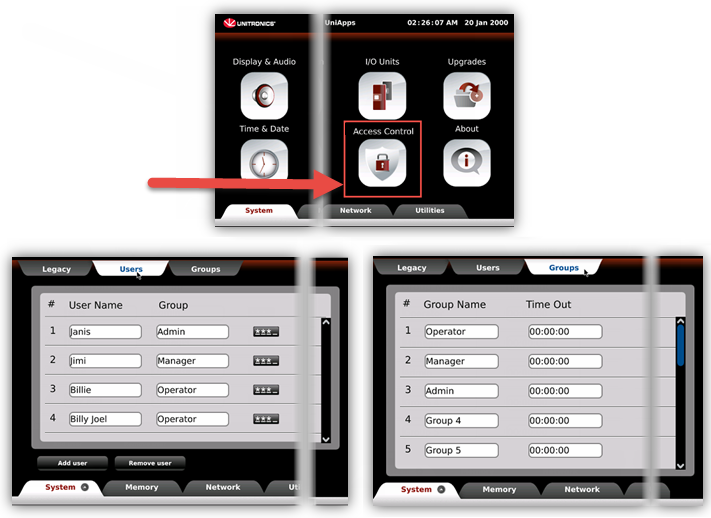
After you download an application where UAC is implemented, users log in and out of the system via the UniApps menu.
Note that via UniApps, you can add Users, change Group associations and passwords, and edit Group Names and Idle Timeout.
When adding users, note that only the groups and users that are used in the project, and that have assigned roles, will be shown.
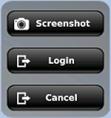
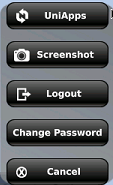
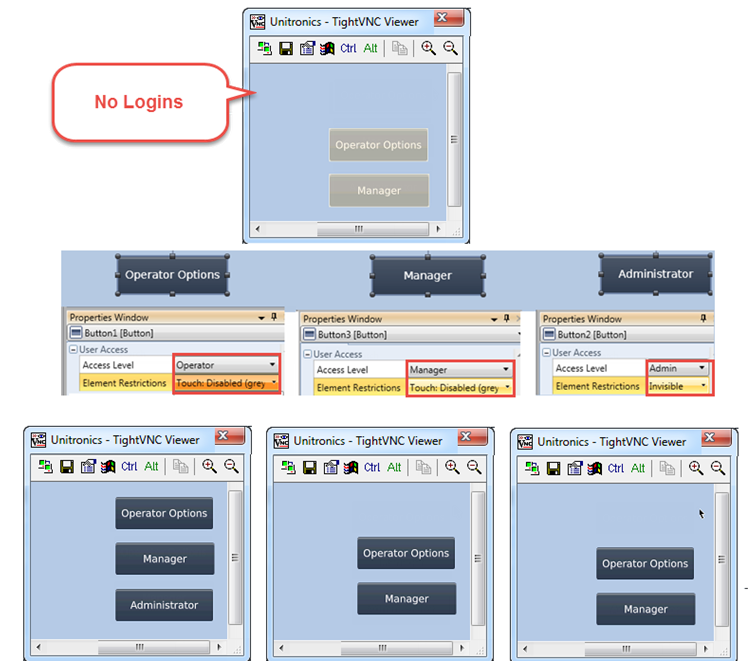
In the image below, the HMI is shown before login, and the state of the buttons after an operator logs in.
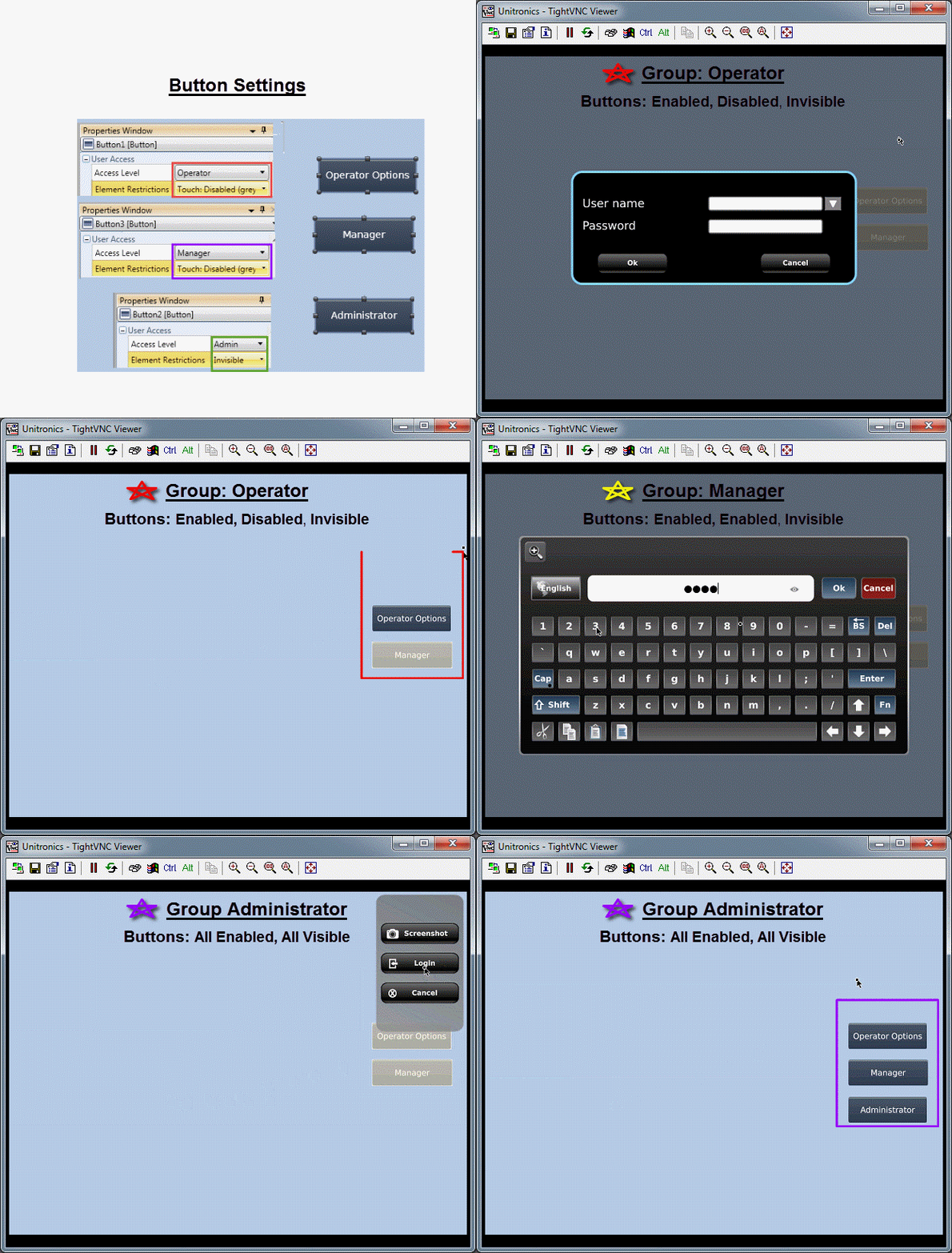
Watch UAC in action:
Logging Activity
You can use the UAC struct to create a events log, by using the Event Update Bit.
UAC Struct
|
|
|
|
|
Event Update Bit
|
Bit
|
Turns ON at an event. Reset by user.
|
|
Event Type
|
UINT8
|
These are the events that may be logged:
|
|
|
|
|
|
LOGIN
|
0x01
|
|
LOGOUT
|
0x02
|
|
CHANGE_GROUP_NAME
|
0x04
|
|
CHANGE_GROUP_TIMEOUT
|
0x05
|
|
CHANGE_USER_GROUP
|
0x06
|
|
CHANGE_USER_NAME
|
0x07
|
|
CHANGE_USER_PASSWORD_BY_ADMIN
|
0x08
|
|
CHANGE_USER_PASSWORD_BY_USER
|
0x09
|
|
DELETE_USER
|
0x0A
|
|
ADD_USER
|
0x0B
|
|
Status
|
UINT8
|
This is the status of the current event:
|
|
|
|
|
| OK |
0x00
|
|
Invalid User Name
|
0x04
|
|
Invalid Password
|
0x05
|
|
Cannot add User. The maximum number of Users has been reached.
|
0x06
|
|
User Name Exists
|
0x07
|
|
A User is currently locked out
|
0x08
|
|
No User is currently logged in
|
0x09
|
|
User password expired
|
0x10
|
|
User Group
|
UINT8
|
This shows the Group ID of the user currently logged into the system.
|
|
Event UTC
|
UINT32
|
Time stamp of the event.
|
|
User Name
|
String
|
The name of the user currently logged in
|
|
Comment
|
String
|
General summary of the event, automatically generated by the system.
This includes, in the case of Lockout, the time that the user account will be released.
|