Project-level Actions enable you to use events to drive actions such as Load Screen, or to play Sounds.
To create an action:
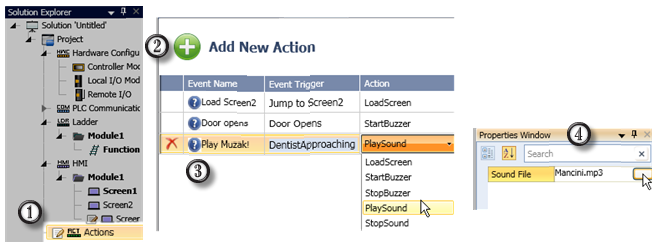
Select Actions from the Solution Explorer tree.
Click Add New Action.
Define the Event Name, select an Event Trigger, and the resultant Action.
|
Note |
|
If the Action requires you to select an entity, such as a screen or sound file, make your selection in the Properties window.
|
Action type |
Description |
||
|
Load Screen |
When the trigger bit turns ON, the screen linked in the Properties Window loads. This bit is reset by the system. |
||
|
Load Last Screen |
When the trigger bit turns ON, the system will load the previous screen. |
||
|
Start Buzzer |
When the Start trigger bit turns ON, the buzzer sounds. This bit is reset by the system. To stop the buzzer, turn the Stop trigger bit ON. This bit is also reset by the system. |
||
|
Stop Buzzer |
|||
|
Play Sound |
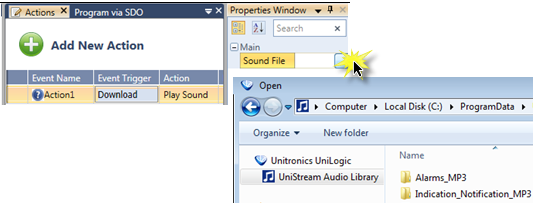
When the Start trigger bit turns ON, the audio system plays the file linked in the Properties Window. This bit is reset by the system. When the file reaches its end, the sound stops--it is not played in a loop. To stop the sound before the file finishes playing, turn the Stop trigger bit ON. This bit is also reset by the system. UniLogic comprises a library of system sounds library of system sounds.
|
||
|
Stop Sound |
|||
|
Change Volume |
When the trigger bit turns ON, the volume increases to the level in the linked register. This bit is reset by the system. If the register value is out of range: - Lower than 1: Volume set to 1 |
||
|
Change Brightness |
When the trigger bit turns ON, the screen brightness increases to the level in the linked register. This bit is reset by the system. If the register value is out of range: - Lower than 10: Brightness set to 10 |
||
|
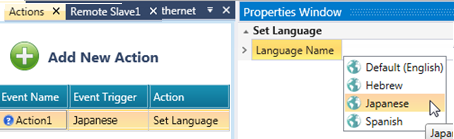
Set Language |
Use a bit to change the HMI display Language. |
||
|
This enables you to load the VNC Client after a power up, or splash screen. |
|||
|
Turn this bit ON to take a screenshot of the current HMI screen. |
|||
|
Clear and Ack all Alarms |
When the trigger bit turns ON, all Alarms are acknowledged and cleared. |
||
|
Clear all Alarms |
When the trigger bit turns ON, all Alarms are cleared. |
||
|
Create and Zip Alarms Log file |
When the trigger bit turns ON, the Alarm Log file is zipped and placed in the "/AlarmLog/" folder on the SD card. The zip file name contains a timestamp, "AlarmLogTIMESTAMP.zip" |
||
|
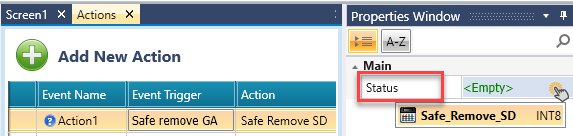
Safe Remove SD |
Enables the user to safely remove the SD You can link an Optional Status Tag to monitor the operation's state:
|
||
|
Safe Remove DOK |
Enables the user to safely remove the DOK |
||
|
UAC Log out Request |
Enables logout as a result of ladder condition. |
||
| UAC Export Adit Trail |
When the trigger bit turns ON, the Audit Trail CSV file is signed and placed in the "/AuditTrail/" folder on the SD card and a new Audit log will begin. |
||
|
Turn Off Screen Saver |
Deactivates Screen Saver. |
||
| Turn On Screen Saver |
Activates Screen Saver. |
||
|
Stop UniCloud Secure Remote Access |
Immediately terminates the SRA connection to your UniStream device. Note that after a PLC reboot, the remote access service will return to its default configured state. |
||
|
Start UniCloud Secure Remote Access |
Activates the SRA connection to your UniStream device. Use this action to re-establish remote connectivity after it has been stopped. |
||
|
Re-mount SD Card |
The Re-mount SD Card action, together with the existing Safe Remove SD action, eliminates the need to physically remove or reinsert the SD card. In certain cases, when the SD card is locked, this action enables you to unlock the SD card and continue working without rebooting the system. |