Data can be imported to and exported from Excel and .csv files.
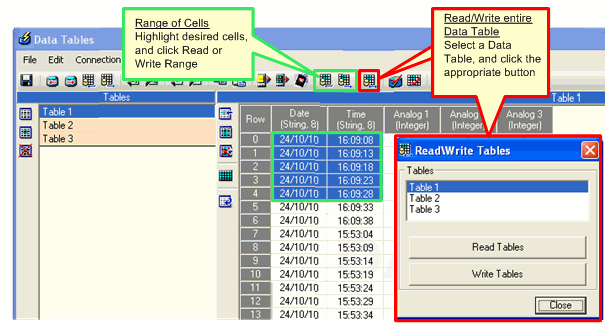
Note that you can include the current values by establishing a communication connection with the PLC and reading or writing values from specific cells, or from an entire Data Table within the PLC into the Data Table in VisiLogic
.
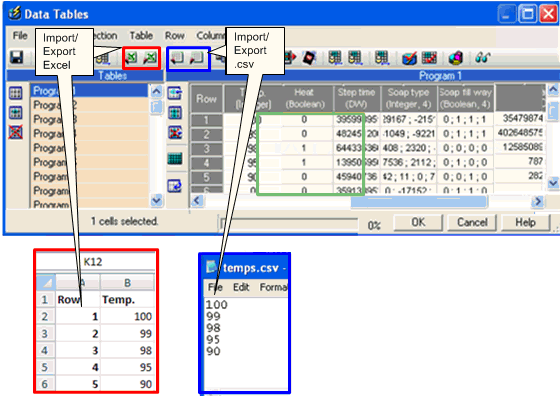
To export data
Highlight the cells containing the desired data.
Click the Export to Excel or Export to .csv button.
Follow the on-screen instructions; data is exported into the desired file type.
To import data
Click the Import to Excel or Import to .csv button.
Follow the on-screen instructions; data is exported into the desired file type.
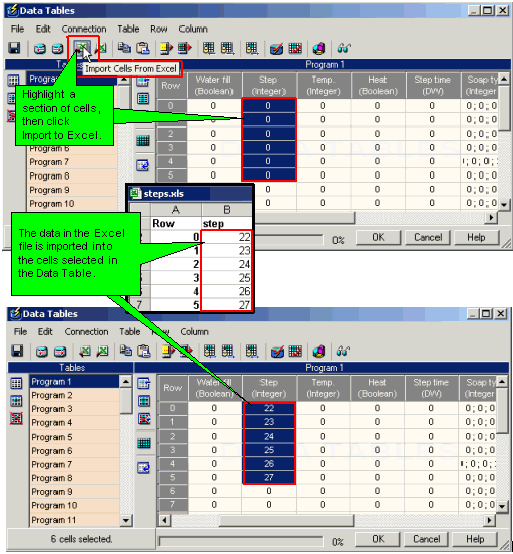
The data is copied as shown below.

To copy/paste data to and from Data Tables and Excel.
Select data. You can select individual cells, rows, columns, or contiguous groups of cells.
Copy the values to the Clipboard either by pressing <Ctrl>+ <C> or by clicking the Copy button.
Click the cursor in the Paste location, then paste the either press <Ctrl> + <V> or click the Paste button.
|
Note ♦ |
The selection is pasted towards the right and down. When you paste from Excel to Data Tables, the Data Table must have enough rows and columns to contain the Paste selection. |