Protecting Subroutines
You can create a Ladder Password, then apply it to protect multiple subroutines and hide their content. When a subroutine is protected, a user cannot export/import it. In addition, the user cannot open, copy, or print it without supplying the password.
Creating and Using a Password
-
To create a password, select File>Set Ladder Password; then fill in the password field.
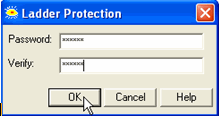
-
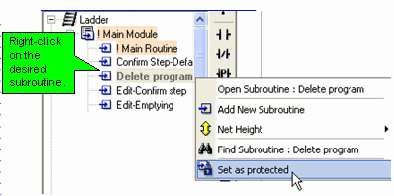
To apply the password to a subroutine, right-click the subroutine's name in the Project Navigation window, then select Set as Protected; a small padlock icon is displayed nest to the subroutine's name.
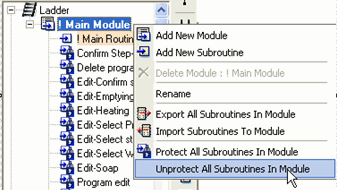
You can also right-click a module's name and select Protect All Subroutines in Module.
|
Note ♦
|
Protection is applied after VisiLogic (not just the project) is closed and reopened.
|
-
To remove protection from a subroutine, right-click the protected subroutine's name, then select Set AS Unprotected; the padlock icon disappears.
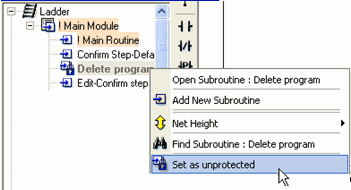
You can remove protection from a module in the same way.
|
Note ♦
|
The same password may be used for different projects.
|
Deleting a Ladder Password
-
To delete a Ladder password from a project, select File>Unset Ladder Password.