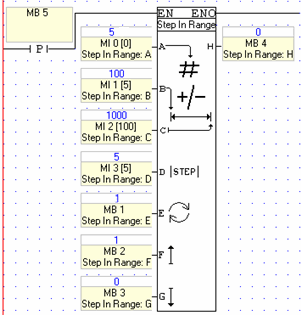
Step in Range enables you to increment a value by a desired amount, to keep the incremented value within a desired range, and notifies you when the incremented value reaches the limit.
To use the function:
Click Compare on the Ladder Toolbar, then select Step in Range.
Place the function in the desired net.
Link the desired Operands and Addresses.
Operand A: Value to Increment/Decrement. This is the value that is incremented.
Operand B: Result - Minimal Value. This is the lower value of the range.
Operand C: Result - Maximal Value. This is the higher value of the range
Operand D: Step. This is the value used for the step size
Operand E: Roll. Turn ON to cause the function to continue to work once the function has been reached.
Operand F: Count Up. Turn ON to increment
Operand G: Count Down. Turn ON to decrement
Operand H: Output, Limit Reached Notifier. This turns ON for one scan when:
- Count UP is active, and the incremented value equals the Maximal value
or
- Count Down is active, and the decremented value equals the Minimal value
The MB resets automatically when the value is not equal.
|
Notes ♦
|
The step size is limited to the range of 1-1000. |
|
♦ |
Value to Increment/Decrement, Minimal Value, and Maximal Value must be the same type of operand, signed or unsigned. |
|
♦ |
If the initial value of the MI linked to Value to Increment fall outside of the range, the first time it is activated, the value will change to either: |
Example:
In the following picture:
MI 0 is the value to be incremented
The range is 100 to 1000
The Step Size is 5
MI 0 is set to Count Up
The first time MB 5 rises, the value in MI 0 will jump to 100, which is the Minimal value. After this, each time the MB 5 rises, MI 0 will increment by 5, until it reaches 1000, turning MB 4 ON. Since Roll is ON, the function will begin to count again, this time from 99, MB 4 will then reset.