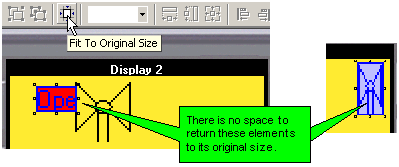
Elements 'grow' down, and to the right.
If resizing/rotating will cause Variable elements to collide, or any element to extend beyond the boundaries of the Display, the element cannot be returned to its original size, or resized to a larger size.
When you open an element for editing, and then press OK, VisiLogic resizes the element. If the new size of the element causes Variable elements to collide, or any element to extend beyond the boundaries of the Display, VisiLogic displays an error message: 'Operation Cannot Be Completed'.
|
Note ♦ |
'Original size' is the actual size of the element as it appears in the element's ToolTip. |
|
♦ |
Fit to Original Size does not affect geometric shapes that are drawn on the Display. |
|
♦ |
'Original size' cannot be used to resize Variable elements if the elements have different original sizes. |
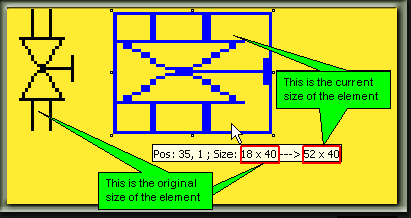
|
Notes ♦ |
Although an imported image can be resized, resizing may result in some degree of distortion. To avoid this, use images that are created to match the required size. |
|
♦ |
Resizing text elements changes the size of the text field, but does not affect font size. |
|
♦ |
Shapes that are imported are resized in proportion to their original size. |