CANbus Message to Data Table (Enhanced Vision only)
You can automatically record CANbus messages to a Data Table. This is applicable to all of the different CANbus protocols supported by Vision controllers.
To do this, you must:
-
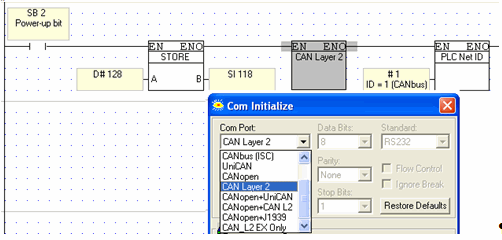
Build a Ladder application that sets the CANbus type, the ID # of the networked controller, and writes the desired number of CANbus messages to be recorded into SI 118 (values 128 to 768).
-
Create a Data Table as described below.
Building the Ladder Application
-
At power-up:
-
Store a value setting the number of CANbus messages to be recorded to the Data Table (values 128 to 768).
Note that this number is the number of rows that should be in the Data Table
-
Include a COM Init function setting the CANbus type.
-
Include a PLC NET ID function to set the desired controller.
Creating the Data Table
 The Data Table must be the first table in the structure.
The Data table must include the following columns:
|
Column Number
|
1
|
2
|
3
|
4
|
5
|
6
|
7
|
8
|
|
Column Name
|
Valid
|
Identifier Type
|
Direction
|
Data Length
|
Identifier
|
Data
|
Time
|
Reserved
|
|
Data Type
|
Boolean
|
Boolean
|
Boolean
|
Byte
|
DW
|
8 bytes
|
DW
|
12 bytes
|
|
Description
|
Turns ON (1) when a valid message has been processed.
Reset by user.
|
0=11 bit
1=29 bit
|
0 =Received (RX)
1= Sent (TX) Not currently supported
|
Indicates Data length
|
The Identifier value
|
8 Bytes of the data
|
Time between messages (in micro seconds)
|
Reserved for future use
|
Configure the Data Table to contain the number of row that has been set in SI 118(values 128 to 768)
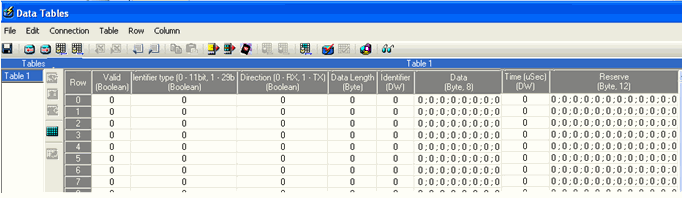
When correctly configured, the controller will automatically record the messages to the Data Table according to FIFO. Note that SI 119 points to the Data Table row in which a message is currently being recorded (read-only).