Display conditional images on the Panel, according to the ranged value of a Data Tag register.
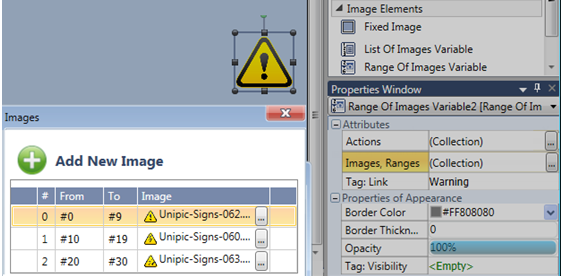
This element contains an Images, Range Collection that supplies the images. You define a range of values, and assign an image to each rangeassign an image to each range.
When the application runs, the register value is compared to the range you have defined for each image.
When the operand value falls within the specified range, the image assigned to that range is shown.
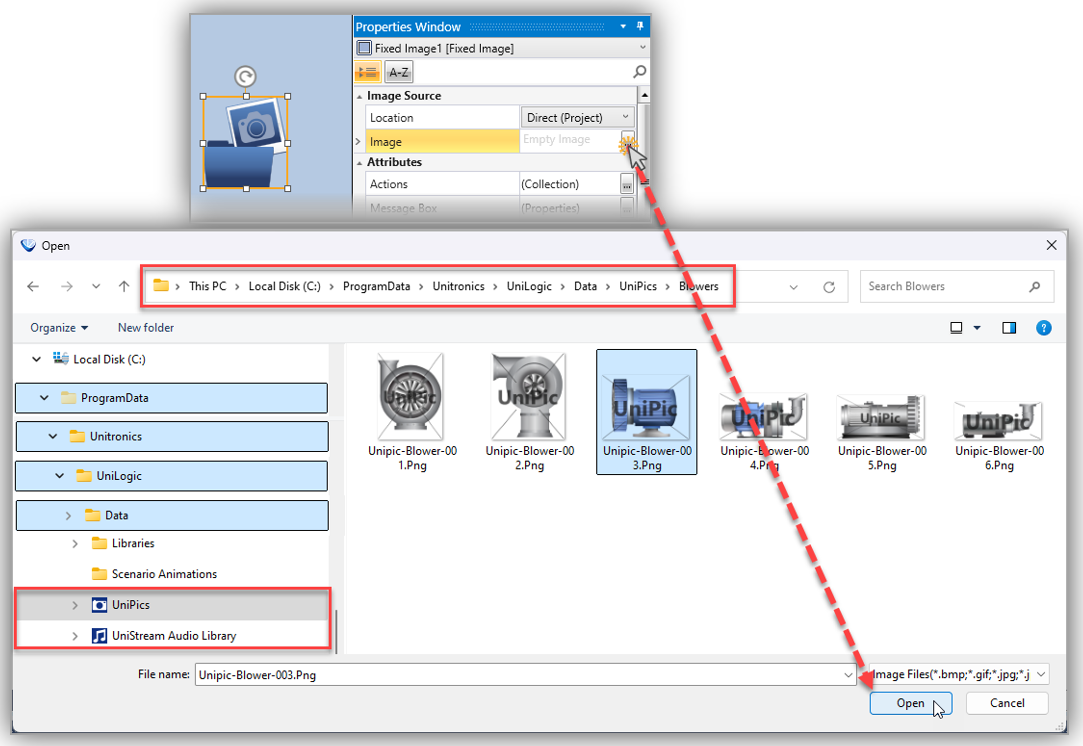
To select an image from the UniLogic Library, select UniPics in the Windows File Explorer.

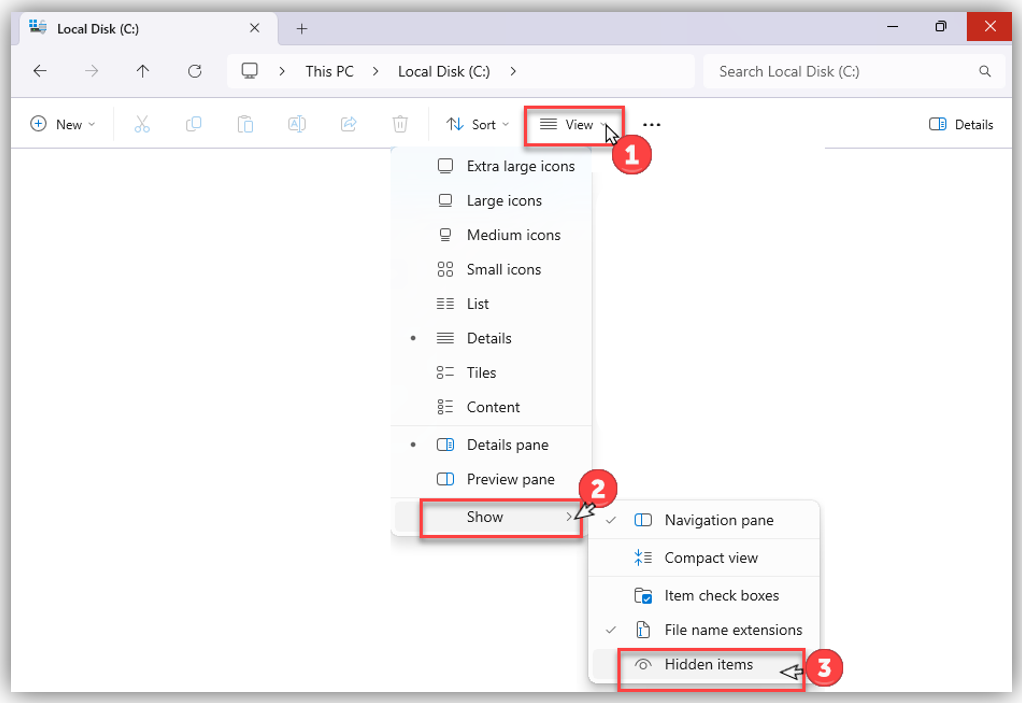
Note: To access the ProgramData folder in the Windows File Explorer, you must toggle on View > Show > Hidden itemstoggle on View > Show > Hidden items.
|
Range of Images Attributes |
|
|
Actions |
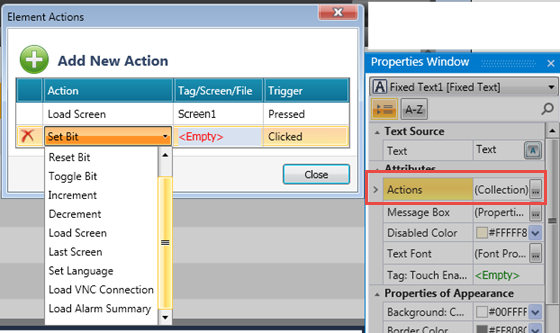
Actions enable a single Touch Element to trigger multiple events. Multiple bits can be linked to one element, triggering Load screen, set, reset, and toggle bits, and more. To create an action:
|
|
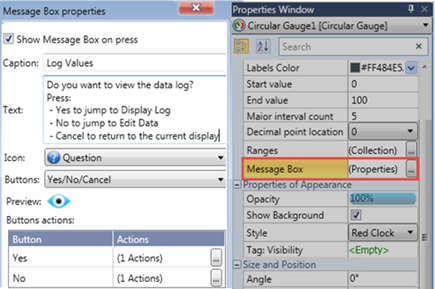
Message Box |
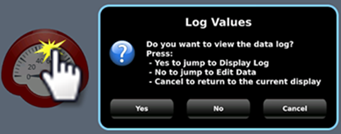
Elements that offer actions also allow you to show users a Message Box, a popup message that opens when the user touches the element.
The message can ask the user a question, or give instructions and warnings. You can select icons, include buttons in the Message Box and use the buttons to drive actions.
|
|
Tag: Link |
The value of this tag determines what is displayed in the HMI element. |
| Images, Ranges |
When the value of the linked data tag falls within a set range, the element displays the relevant image.
|