BACnet Client
UniLogic now enables you to easily implement BACnet Client communications by configuration rather than programming.
BACnet Client functionality complements our existing BACnet Server capabilities (Ethernet/IP only), and supports two communication methods:
You can operate both communication methods simultaneously or choose to use only one option.
 |
-
BACnet Client requires a license purchase. For more information, please contact your Unitronics' sales representative.
-
One-hour Trial Offer: this free, fully functional trial offer enables you to explore UniStream's BACnet Client for 60 minutes at a time. Click here for Trial activation instructions.
-
BACnet Client Limitations: 64 devices, 16 objects per device.
|
Configuring BACnet Client
BACnet Client over Ethernet/IP
-
On the Solution Explorer tree, click PLC Communications to expand it, then Protocols > BACnet Client > Panel Ethernet > Devices, and then click Add New Panel Ethernet Device Connection.

-
Click in the Panel Ethernet Device Connection fields to specify the Name and Device ID.
UniLogic creates a dedicated struct for each device connection.

-
Set the Common Device Settings definitions in the Properties WindowCommon Device Settings definitions in the Properties Window.
|
BACnet Client Panel Ethernet Device Connection Properties Window Parameters
|
|
Client Device ID
|
Enter the ID of the client device to be accessed. The range is 0 - 4194304
|
|
Client IP Address
|
The IP address is automatically inherited from the PLC configuration
|
|
Port (UDP)
|
Enter the port. The range is 0 - 65535
|
-
For each Ethernet/IP device, add new operations.
BACnet Client over Serial
To begin, include an I/O module or enable the USB Serial in your application:
-
In the Solution Explorer, select Hardware Configuration > Uni-I/O & Uni-COM, and add one of the I/O modules (UAC-CX-01RS2 or UAC-CX-01RS4).
In the Properties Window, configure the port for BACnet Client.

-
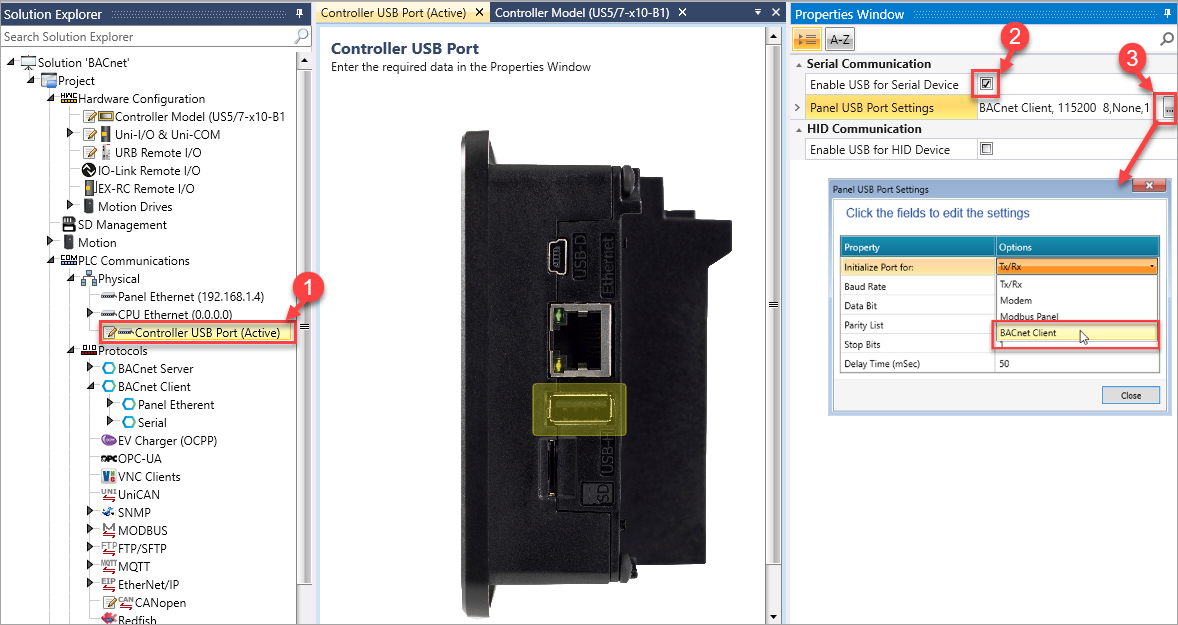
Alternatively, in the Solution Explorer, select PLC Communications > Physical > Controller USB Port.
In the Properties Window, enable the USB for serial device, and from the Panel USB Port Settings drop-down options, initialize the port for BACnet Client.
-
Default BACnet Port Settings are loaded automatically, with the option to modify Baud Rate according to your application.

-
You can now add serial device connections.
-
On the Solution Explorer tree, click PLC Communications to expand it, then Protocols > BACnet Client > Serial > Devices, and then click Add New Serial Device Connection.

-
Click in the Serial Device Connection fields to specify the Name and Device ID.
UniLogic creates a dedicated struct for each device connection.

-
Set the Common Device Settings definitions in the Properties WindowCommon Device Settings definitions in the Properties Window.
|
BACnet Client Serial Device Connection Properties Window Parameters
|
|
Client Device ID
|
Enter the ID of the client device to be accessed. The range is 0 - 4194304
|
|
Serial Communication
|
Select the physical interface for serial communication.

|
|
Client MAC address
|
Enter the ID of the client on the network segment. The range is 0 - 127
|
|
Max Masters
|
Maximum address allowed on the network. The range is 1 - 127
|
|
Max Info Frames
|
Maximum number of messages a device can send. The range is 1 - 255
|
|
Request Timeout (ms)
|
Determine the time to wait for a response. The range is 50 - 2000
|
-
For each Serial Device, add new operations.
Adding Operations
For each BACnet Device created, you can add Aperiodic or Periodic operations. The parameters differ as listed in the next table.
|
|
|
|
ID
|
Unique identifier auto-generated by UniLogic, starting from 0.
|
|
Name
|
Enter an identifying name for your convenience.
|
|
Object Type
|
Click to select the BACnet object type to be accessed.
-
Analog Input (AI)
-
Analog Output (AO)
-
Analog Value (AV)
-
Binary Input (BI)
-
Binary Output (BO)
-
Binary Value (BV)
-
Integer Value (IV)
-
Multi State Input (MI)
-
Multi State Output (MO)
-
Multi State Value (MV)
|
|
Data
|
Link to the tag the data value for the Read/Write operation.
Note that the tag type must match the object type.
|
|
Supported Services
|
Click to select the desired services for the selected object type (Read/Write)
|
|
Write Priority
|
Optional priority level for Write operations only. Range 1-16
|
|
Property Identifier
|
The BACnet property to access (currently limited to Present_Value)
|
|
Object Instance ID
|
The specific instance number of the BACnet object on the server.
|
|
Status
|
Optional detailed status information per each Periodic and Aperiodic operation:
-3 - BACnet Request Disconnected - Client is disconnected from the BACnet server
-2 - BACnet Request Time Out - Operation request has timed out
-1 - BACnet Request Error - General error occurred during operation
0 - BACnet Request Finished OK - Operation completed successfully
1 - BACnet Request in Progress - Operation is currently being processed
|
|
|
|
Execution Interval (ms)
|
Determine the time between successive executions of the operation. Range 500-10000 (default 1000)
|
To add Aperiodic operations:
-
Select the tab with the desired operation type, and click Add New Operation. UniLogic adds a row to the table.
-
Click in the fields to edit and make selections.
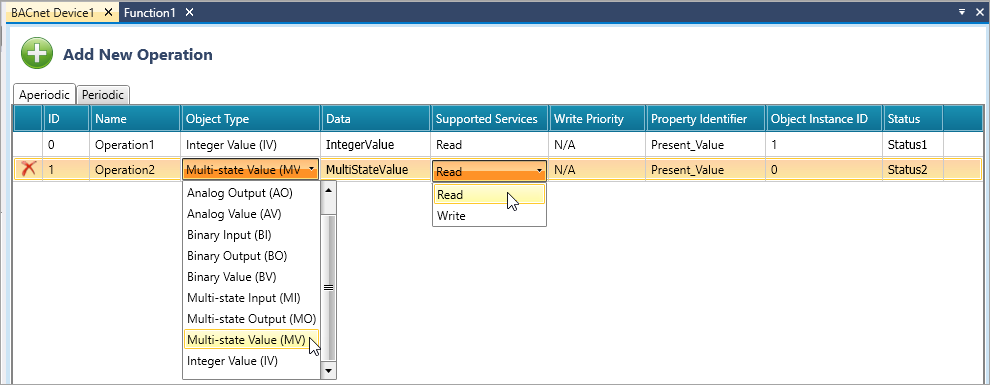
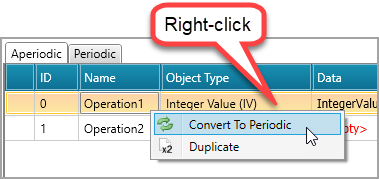
You can convert Aperiodic operations to Periodic, and vice versa. Note that you can also duplicate the operations.
|
Note that the ID parameters allow you to use Aperiodic Ladder elements to run the operations via your program.
|
BACnet Client Aperiodic Ladder Functions
The ladder functions listed below can run via Ethernet/IP or Serial channels in UniStream.
Use this to publish a specific operation according to the operation ID number.
|

|
You must not place an Aperiodic function on the bus bar, or anywhere it will be continuously activated. Use a delay of 10-50 msec between requests.
|

|
|
Parameter Name
|
Purpose
|
|
A
|
BACnet Device Interface
|
Select the required Device Interface channel; Ethernet or Serial.
|
|
B
|
ID to Publish
|
This is the ID# of the operation. You can provide a constant or a tag.
|
|
C
|
Status
|
The value indicates the status of the function:
0 - No error
1 - Function started
2 - Function in progress
10 - Function start error
-1 - Invalid request ID
-2 - Server disconnected
-3 - General error
-4 - Request already pending
|
BACnet Client Device Struct
When you add a server device, UniLogic automatically creates a supporting data tag struct. Use the members of the struct to monitor the server status.
Note that these parameters are read-only.
|
|
|
|
|
Is Connected
|
Bit
|
Indicates the connection status with the server. The connection status is updated after discovery or when a request times out.
|
|
|
|
|
0
|
Disconnected
|
|
1
|
Connected
|
|
Return Code
|
INT8
|
Indicates the status of the most recent request sent by the client to the server.
|
|
|
|
|
0
|
No data sent
|
|
1
|
Success
|
|
2
|
Failed
|
Export/Import BACnet Client Configurations
You can export and import a UniStream BACnet Client device's configurations, via a proprietary Unitronics file. To export or import the configurations of:
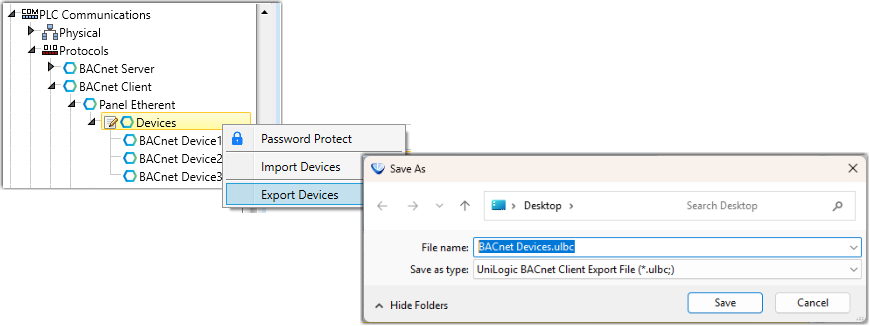
To export the configurations of:
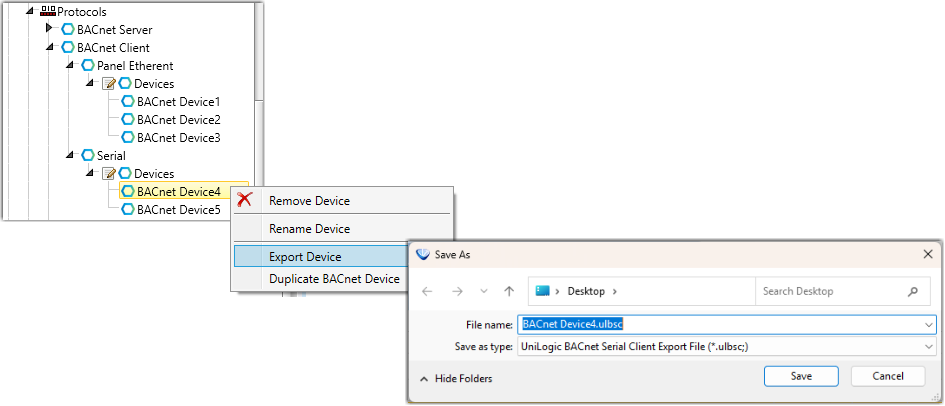
Licensing: Activating BACnet Client
Trial Activation
To activate the BACnet Client Trial license:
-
Create a UniLogic project.
-
Add a BACnet IP or serial client as shown above; include I/Os, Schedules, and other items according to your project needs.
-
Download your BACnet project to a UniStream controller.
At the end of the download, your PLC will restart, and the One-hour Trial will automatically start.
-
When the trial hour completes, UniStream will display this HMI screen:

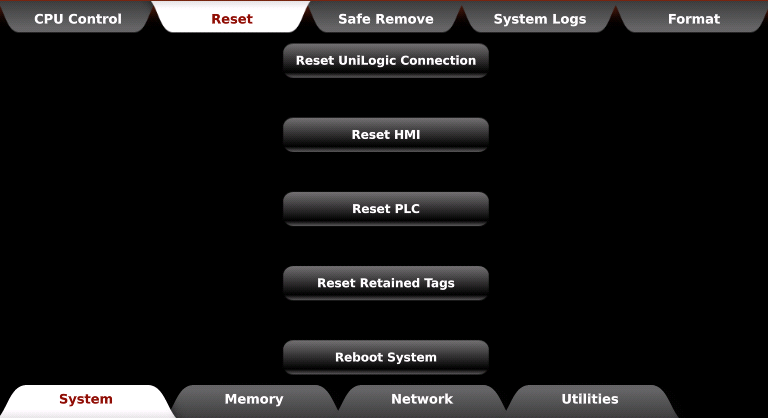
 You can reactivate the 1-hour Trial by restarting the PLC or HMI, or by selecting the Reset HMI or Reset PLC option in UniApps.
Full Activation
When you purchase a license from your Unitronics sales representative, you receive a license key number.
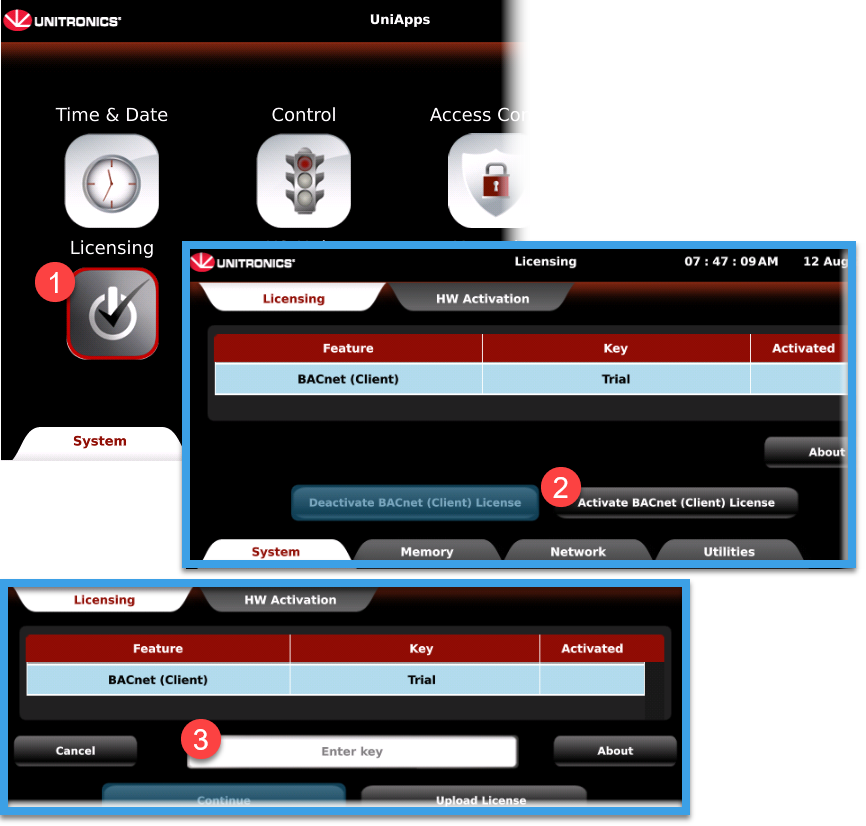
In UniApps, select Licensing > Activate BACnet (Client) License > Enter Key and follow the on-screen instructions for Activation.