Development Mode is intended for use with controllers that are directly connected to PC by USB cable, or within the LAN.
Using this feature for PLCs not in the LAN is not recommended, as it may expose your PLC to unauthorized intruders.
Development Mode and Quick Sync are time-saving features that can help you to develop UniLogic projects more efficiently. You can use them independently, or both together.
Development Mode: when enabled, this mode saves time by temporarily suspending, for 1 hour, the password verification process performed between UniLogic and UniStream at download.
Quick Sync: downloads small changes in Ladder, Message Composer, Switch Case, and Formula, while other changes are ignored. This can save significant download time during project development.
|
|
Development Mode is intended for use with controllers that are directly connected to PC by USB cable, or within the LAN. |
A UniStream controller is protected, by default, with a password to prevent unauthorized access. This password is verified with every command sent to the controller.
The verification process adds overhead to the PLC communication, which adds to download time.
When you enable Development Mode, the PLC:
Suspends the password verification process for one hour. This allows faster PC-PLC communications and faster downloads.
Automatically disables Development Mode, and restores password verification when the hour has elapsed.
The Development Mode buttons are located in the Ribbon, under PLC.

|
Button |
Purpose |
|
Start |
Enables Development Mode in the PLC for one hour. |
|
Stop |
Disables Development Mode. |
|
Get State |
To check if Development Mode is enables, click Get State; UniLogic will display a message reporting the state of Development Mode in the PLC: Enabled / Disabled. |
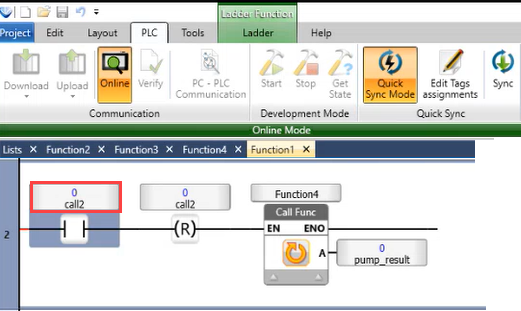
When in online mode, you can enter Quick Sync Mode. When you are running Quick Sync, you can edit your control application; note that any changes you make while in Quick Sync are not incorporated into the project until you save the project.
While running Quick Sync, you can take perform a number of actions in both Ladder and C functions.
You can add, delete and move functions and elements in all Ladder functions, including Loop Functions, just as you do when editing Ladder. Via buttons on the PLC toolbar, you can also edit and re-assign tags.
While running Quick Sync, click Edit Tags assignments; you can now edit tags.
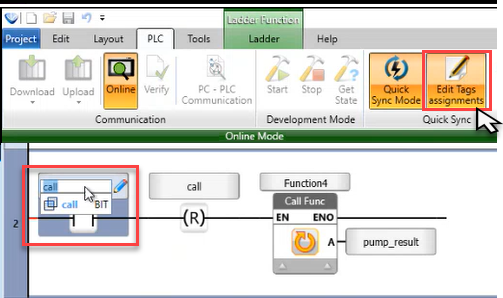
When you are done, click Edit Tags assignments to de-select it, and then click Sync.
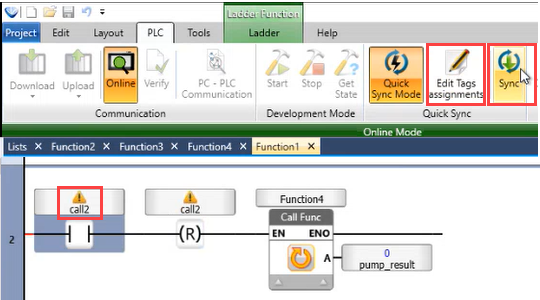
After Sync, the tags are re-assigned. The new assignments are not incorporated into the project until you save the project.