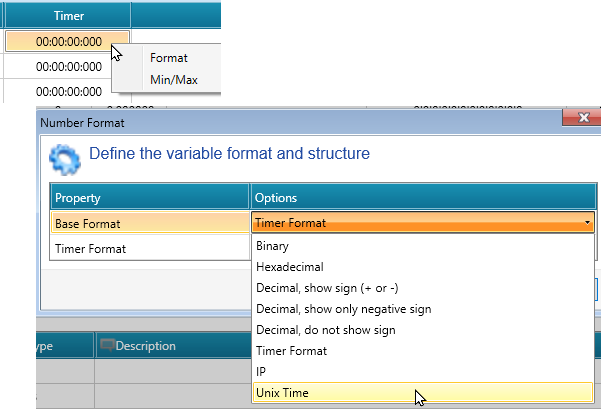
To create a table, either:
- Right-click Data Tables in the Solution Explorer and then click Add Table.
or
- Select Data Tables in the Solution Explorer, and then click Add New Table
To create a table, either:
- Right-click Data Tables in the Solution Explorer and then click Add Table.
or
- Select Data Tables in the Solution Explorer, and then click Add New Table
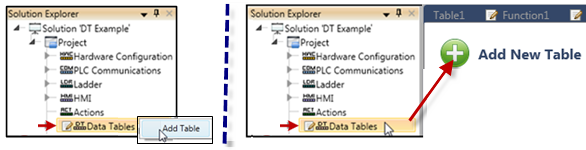
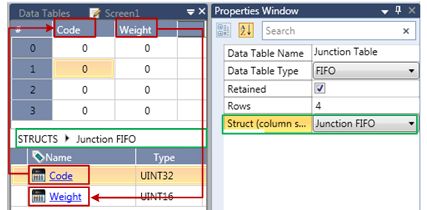
If you assign a Float value to a column, you can determine the location of the decimal point via by right-clicking the column and assigning it.
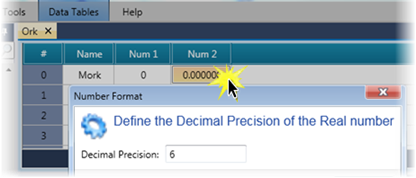
The Data Table Properties determine the type and structure.
|
Property Name |
Definition |
|
Data Table Name |
The Data Table Name appears as a Global Data Tag |
|
Data Table Type |
These include
|
|
Retained |
Select this to back up the Data Table values in case of power-off. Note that you can initialize these values either by:
In most cases, Data Tables values should be initialized after power-up. |
|
Rows |
Enter the number of table rows |
|
Struct |
The columns of the Data Table are defined by the linked Struct. - UniLogic struct, such as System Error, Note that you do not have to declare the Struct in order to use it.
A Data Table and the Struct it is linked to cannot have identical names. If the names are identical, you will not be able to link the struct members to the parameters of Data Table ladder functions.
|
You can determine the format of a data table cell by right clicking it and selecting format; the options of available formats for the data cell type will open, and will be customized according to your selections.