
Contents
UniStream controllers support IO-Link via EtherNet/IP. IO-Link is a point-to-point communication interface specified in IEC 61131-9. Unitronics supplies the following system components:
IO-Link masters
Unitronics master modules are external to the controller. A master's port can:
- function as a simple digital IO
- be connected to a Unitronics' IO-Link digital / analog hub
- be connected to IO-Link devices that you configure by importing the device's IODD (IO Device Description) that is supplied by the device manufacturer.
Two classes of master modules are available; Class A and Class B.
Class A comprises standard IO-link ports, while Class B ports offer additional separate power supply pins, to support devices that require an additional power source to operate.
Unitronics master modules are available in different models. Models differ both in the number of ports and the Class of ports offered.
IO-Link hubs
Unitronics I/O hubs offer different numbers of I/O points.
Digital Hubs: Each hub port can be set either as a digital input, output, or left unused.
devices.
Analog Hubs: Each hub port can be set either as an analog input, output, or left unused
Splitters
If a hub port supports two I/O points, a splitter enables that port to be easily connected to two digital I/O devices.
Unshielded 4-wire or 5-wire standard cables
Note that the maximum distance between Master and IO-Link devices is 20 meters.
All UniStream controllers support IO-Link. The number of supported masters per controller is according to model as follows:
B10 - 8 masters
B5 - 8 masters
B3 - 1 master
A UniLogic option, IO-Link Remote I/O in the Solution Explorer located under Hardware Configuration, enables you to add and configure both masters and devices.
As you add and configure the IO-Link components, UniLogic automatically creates structs to support them and manage the application data. You can then use the struct members in your application to store data from or load data to the IO-Link components.
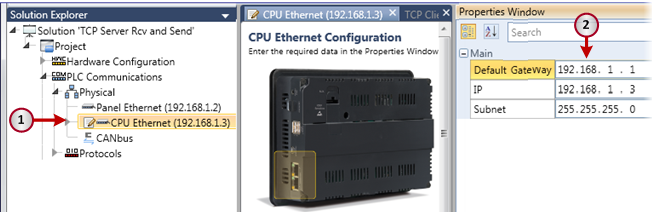
Before you begin working with IO-Link, assign an IP address to the UniStream CPU.
Click IO-Link Remote I/O on the Solution Explorer; the Toolbox displays the available IO-Link masters.
In the Toolbox, either drag & drop or double-click the desired master to add it to the configuration.
Note that when you add an IO-Link master, UniLogic automatically adds structs for the IO-Link master, an EtherNet/IP scanner and related structs. Each port has a specific struct, as shown in the next figure.
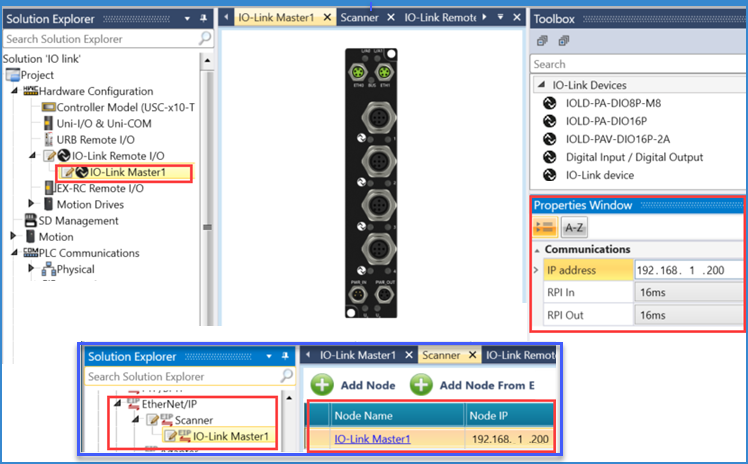
In the Solution Explorer, select the master module; this opens the Toolbox to display the available IO-Link devices and opens the Properties window.
Enter the IP address in the Properties Window. UniLogic automatically assigns this IP address to the EtherNet/IP scanner.
UniLogic automatically assigns the IP address of the IO-Link master to the Ethernet/IP scanner.
Note that the IO link master devices are supplied with the following defaults:
IP Address: 192.168.1.200
Subnet Mask: 255.255.255.0
Default Gateway: 192.168.1.1
Click here to learn how to change the IO-Link master defaults.
In the Properties window, you can also set the RPI In/Out, and the Pin2 Safe State.

Drag devices from the Toolbox to the master; you can drop them on any connector that turns yellow as the device approaches it.
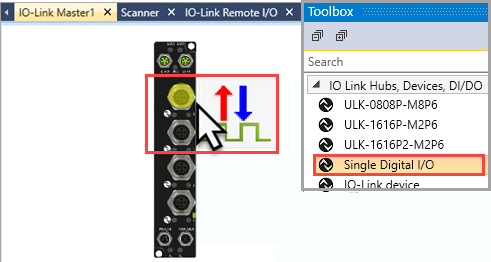
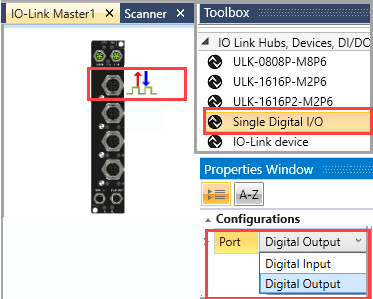
Configure Port as Digital I/O: from the Toolbox, drag a Single Digital I/O to a master module port.
In the Properties Window, set it to input or output.
UniLogic creates a struct for the IO points for each master module, which you can access via the IO tab in the Tag window at the bottom of the screen. In the next figure, Port 0 is set as an Input, outlined in green. Port 2 is set as an Output, outlined in magenta.

Unitronics IO-Link Hubs (multiple digital I/O points): after you drop a module onto the master, the Properties window opens, outlined in red in the next figure, and displays the Input/Output configuration options, allowing you to set each port on the module to input or output.
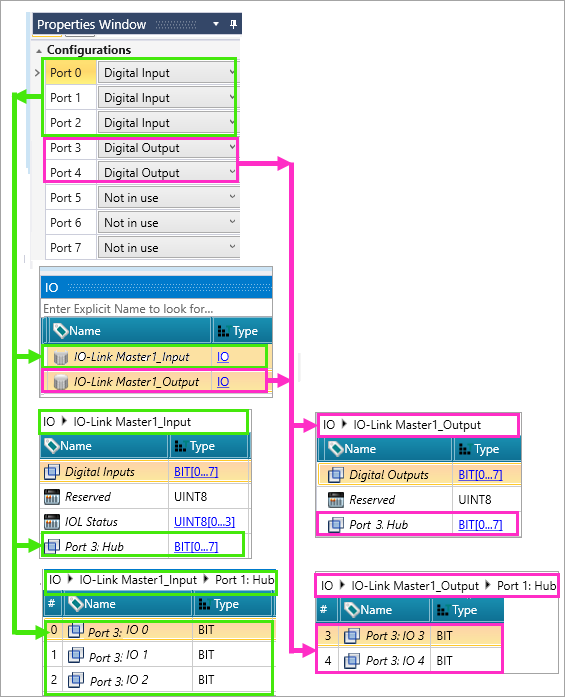
The next figure shows the IO assignments for an IO-Link digital hub.

UniLogic creates a struct for the IO points for each master module, which you can access via the IO tab in the Tag window at the bottom of the screen. In the next figure, Ports 0, 1, and 2 are set as Inputs, outlined in green. Port 3 and 4 are set as Outputs, outlined in magenta. Ports 5,6, and 7 are not in use.
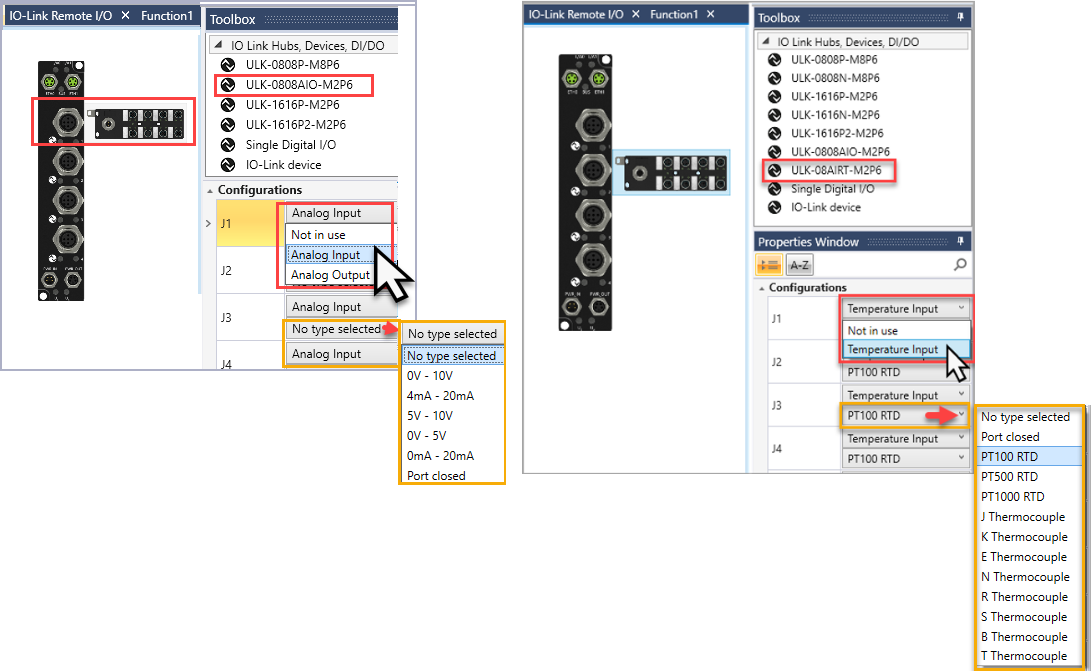
Analog & Temperature IO-Link Hubs: after you drop a module onto the master, the Properties window opens, (outlined in red in the next figure), and displays the sensor/analog configuration options. You can set each port on the module to the desired analog or temperature sensor type.
The next figure shows the IO assignments for IO-Link analog and temperature hubs.
Note: Selecting a port type in UniLogic does not affect the actual hardware configuration of the I/O point. The selection appears only in the I/O struct as a descriptive label.
Supported Models:
- ULK-0808AIO-M2P6 – Analog hub, 8 channels
- ULK-08AIRT-M2P6 – Temperature hub, 8 analog temperature channels (supports dimensioned data with 0.1 °C resolution)
|
|
In order to configure the ULK-0808AIO-M2P6 and ULK-08AIRT-M2P6 hubs, use the TEConcept software from the Unitronics website site, located at https://downloads.unitronicsplc.com/Download/SoftwareVersions/UniLogic/ADP_ULKCFG_Software.zip Instructions for importing the IODD file for the hub and setting parameters are included in the hub's user guides, located on the website at https://www.unitronicsplc.com/support-technical-library/ |
IO-Link Devices from other manufacturers: drag an IO device module from the Toolbox.
In the Properties Window > Attributes > IODD File, click to import the device manufacturer's configuration file.
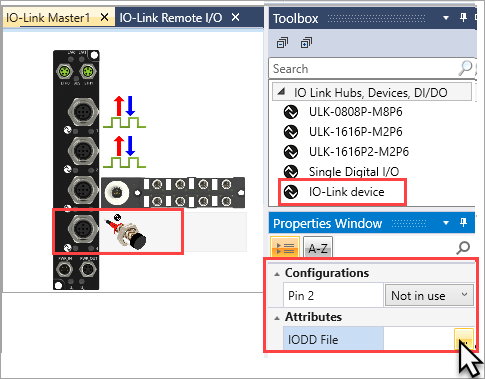
UniLogic imports the device definitions from the IODD file into the master structs as shown in the next figure.

Configuring a Generic IO-Link Device Using Raw Process Data
UniLogic enables you to configure a generic IO-Link device by manually defining the size of its cyclic process data. This option enables cyclic raw process-data exchange with generic IO-Link devices - useful when automatic process-data mapping is unavailable, or when you need direct access to the device's raw IO-Link data.
Note: Device parameterization, ISDU services, and other device-specific functions may still require an IODD or separate configuration via the IO-Link Control Tool (TEConcept). See Configuring IO-LINK Device Parameters via Unitronics Masters.
Note: A master can have a mix of devices - some configured manually via Advanced (raw process data) and others configured via IODD import - on any combination of ports.
Add the IO-Link device to the required port of the IO-Link master.
Select the device in the Solution Explorer.
In the Properties window, select Advanced.
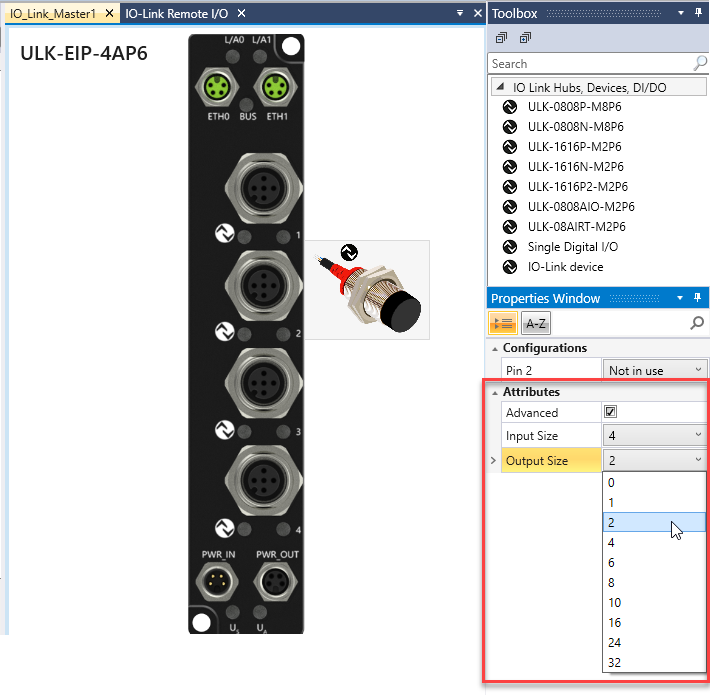
Set the required process-data sizes as specified by the IO-Link device's manufacturer:
|
Property |
Description |
Available Values |
|
Input Size |
The number of cyclic process-data bytes transmitted from the IO-Link device to the controller |
0, 1, 2, 4, 6, 8, 10, 16, 24, or 32 bytes |
|
Output Size |
The number of cyclic process-data bytes transmitted from the controller to the IO-Link device |
0, 1, 2, 4, 6, 8, 10, 16, 24, or 32 bytes |
Selecting 0 means that the device does not use cyclic process data in that direction.
Note: If the size you select is not one of the supported values, UniLogic rounds the buffer size up to the nearest supported size.
|
Selection |
Input Size |
Output Size |
Configuration Encoding |
|
IOL_1_01 Byte |
1 |
0 |
256 |
|
IOL_1_02 Byte |
2 |
0 |
512 |
|
IOL_1_04 Byte |
4 |
0 |
1024 |
|
IOL_1_06 Byte |
6 |
0 |
1536 |
|
IOL_1_08 Byte |
8 |
0 |
2048 |
|
IOL_1_16 Byte |
16 |
0 |
4096 |
|
IOL_1_24 Byte |
24 |
0 |
6144 |
|
IOL_1_32 Byte |
32 |
0 |
8192 |
|
IOL_0_01 Byte |
0 |
1 |
1 |
|
IOL_0_02 Byte |
0 |
2 |
2 |
|
IOL_0_04 Byte |
0 |
4 |
4 |
|
IOL_0_06 Byte |
0 |
6 |
6 |
|
IOL_0_08 Byte |
0 |
8 |
8 |
|
IOL_0_10 Byte |
0 |
10 |
10 |
|
IOL_0_16 Byte |
0 |
16 |
16 |
|
IOL_0_24 Byte |
0 |
24 |
24 |
|
IOL_0_32 Byte |
0 |
32 |
32 |
|
IOL_I/O_01/01 Byte |
1 |
1 |
257 |
|
IOL_I/O_02/02 Byte |
2 |
2 |
514 |
|
IOL_I/O_02/04 Byte |
2 |
4 |
516 |
|
IOL_I/O_02/08 Byte |
2 |
8 |
520 |
|
IOL_I/O_04/02 Byte |
4 |
2 |
1026 |
|
IOL_I/O_04/04 Byte |
4 |
4 |
1028 |
|
IOL_I/O_04/08 Byte |
4 |
8 |
1032 |
|
IOL_I/O_04/16 Byte |
4 |
16 |
1040 |
|
IOL_I/O_08/02 Byte |
8 |
2 |
2050 |
|
IOL_I/O_08/04 Byte |
8 |
4 |
2052 |
|
IOL_I/O_08/08 Byte |
8 |
8 |
2056 |
|
IOL_I/O_08/16 Byte |
8 |
16 |
2064 |
|
IOL_I/O_08/32 Byte |
8 |
32 |
2080 |
|
IOL_I/O_16/02 Byte |
16 |
2 |
4098 |
|
IOL_I/O_16/04 Byte |
16 |
4 |
4100 |
|
IOL_I/O_16/08 Byte |
16 |
8 |
4104 |
|
IOL_I/O_16/16 Byte |
16 |
16 |
4112 |
|
IOL_I/O_32/02 Byte |
32 |
2 |
8194 |
|
IOL_I/O_32/04 Byte |
32 |
4 |
8196 |
|
IOL_I/O_32/04 Byte |
32 |
8 |
8200 |
|
IOL_I/O_32/16 Byte |
32 |
16 |
8208 |
|
IOL_I/O_32/32 Byte |
32 |
32 |
8224 |
UniLogic exposes the configured process data as raw data in the automatically generated IO-Link device structure, accessible via the IO tab in the Tag window. Each configured port adds a Port_<n>_Input and/or Port_<n>_Output member, of type BUFFER[0…size-1], alongside the existing Digital_Inputs/Digital_Outputs, Reserved, and IOL_Status members.

|
|
UniLogic does not interpret or parse process data configured using the Advanced option.
The selected Input Size and Output Size must match the cyclic process-data lengths supported by the connected IO-Link device. An incorrect size may result in invalid data or failure to exchange process data correctly. Example If the device documentation specifies:
Select:
The controller receives the four input bytes as raw data and transmits the two output bytes prepared by the application. The application must parse and assemble these bytes according to that layout. |
The struct that supports the IO-Link digital inputs contains a parameter for status messages.
IOL Status messages are as follows:
164 (HEX A4) the IO-Link master is disconnected from the IO-Link device connected with this I/O port
3 the IO-Link master is connected with the IO-Link device connected with this I/O port
0 no device/IO is set for this port.
Unitronics provides a tool that enables you to set the IP address of the master module. You can down load it at:
https://downloads.unitronicsplc.com/Download/SoftwareVersions/UniLogic/ULK_IP_Tool.zip
Unitronics IO-Link masters are released with the factory-default IP address 192.168.1.200
You can change the default IP change by following the directions below:
In your PC, change your Ethernet PC card setting to static IP.

Power on the IO-Link master module.
Open the software IP Setting Tool after powering on the module.
Select Scan Ethernet Devices, and set the IP Address range to search for by setting the start and end addresses, and click OK.

Double-click the device found and change the IP setting to “BOOTP” mode. This causes the master to be visible for any network.

The master is now set to “not set” mode; you must set your PC network card to the IP address area that is to include the master.
Set the master to your desired IP address.
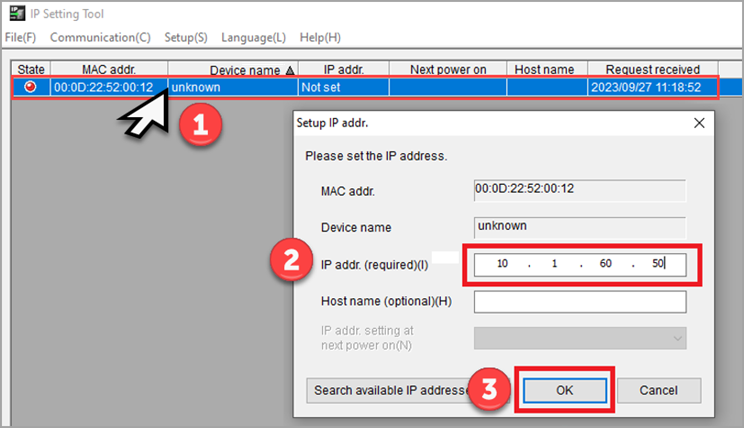
If the address is not successfully assigned, the message shown in the next image is displayed. Click Retry, and re-assign.

After the address has been successfully assigned, ensure that the address will be loaded to the module at power off /on.
Double-click the blue bar showing the module, and select Start with fixed IP as shown in the next image.
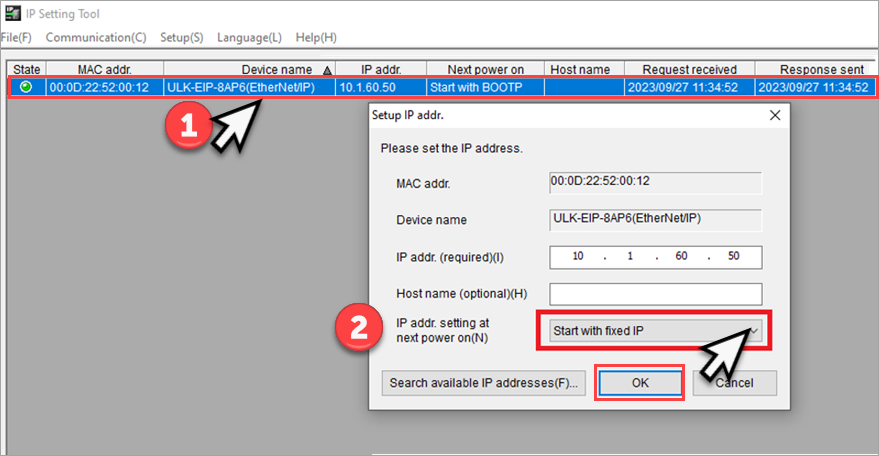
The IP address will be assigned to the master module the next time the master is powered up.
Click Exit to close the tool.

In addition to the cyclic data (PDOs) that the PLC reads during the standard communication method, there are additional parameter settings for the IO-Link sensor/device that are defined in the IODD file. You can set these via IO-Link masters using the TEConcept software as described below.
|
|
Download and install the lO-Link Control Tool TEConcept software from the Unitronics website site, located at https://downloads.unitronicsplc.com/Download/SoftwareVersions/UniLogic/ADP_ULKCFG_Software.zip |
Before you begin, set your PC network card to be in the same master IP family (for example 192.168.1.100)
Connect the Master ethernet cable port to the PC network port (direct connection), power on the IO-Link master, and then connect the IO-Link device to be configured to the X1-X4/X1-X8 (depends on master model) port.
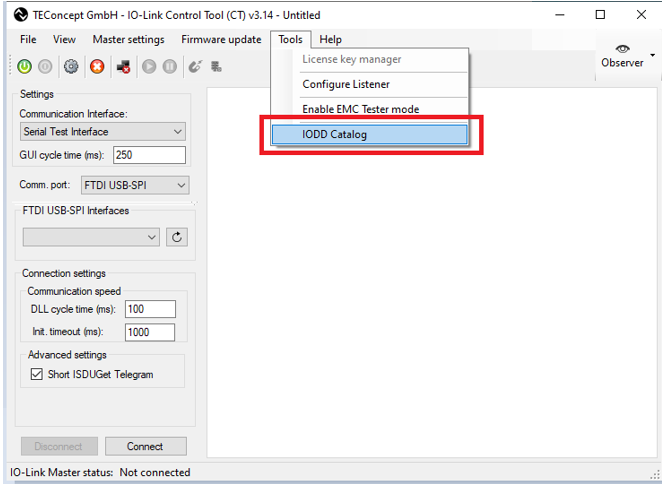
Open the lO-Link Control Tool (CT).exe TEConcept software.
In the menu bar, select Tools > IODD Catalog button; the Device Selector opens.
Click the "Import" button and navigate to your device's IODD.
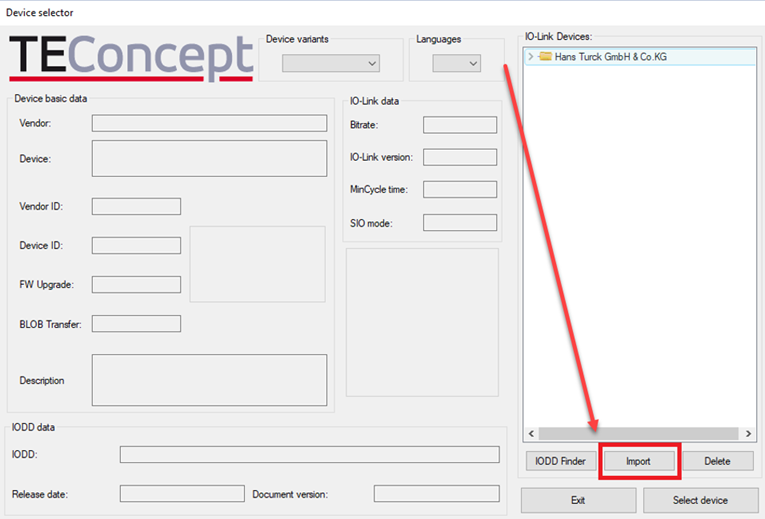
Click Open.
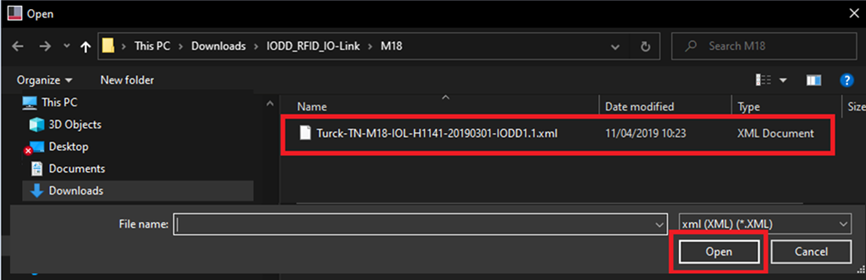
The device is added to the list; select it and click Select Device.

Under Settings> Communications Interface:
- Select TCP/IP for the comm port.
- Under TCP Settings, either:
-Enter the Master IP address.
or
-the port► choose the master port your device is connected to.
300= X1-X4 master port
301= X5-X8 master port (only on 8 port masters)

Click Connect.
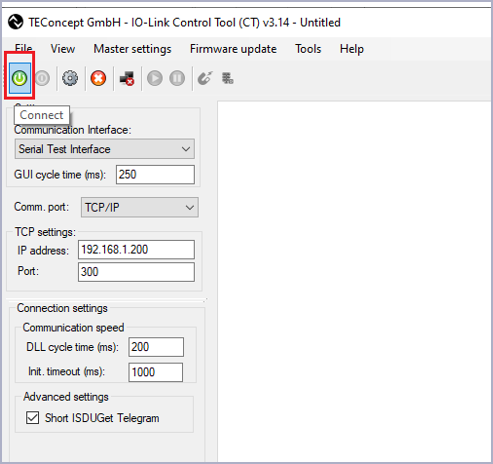
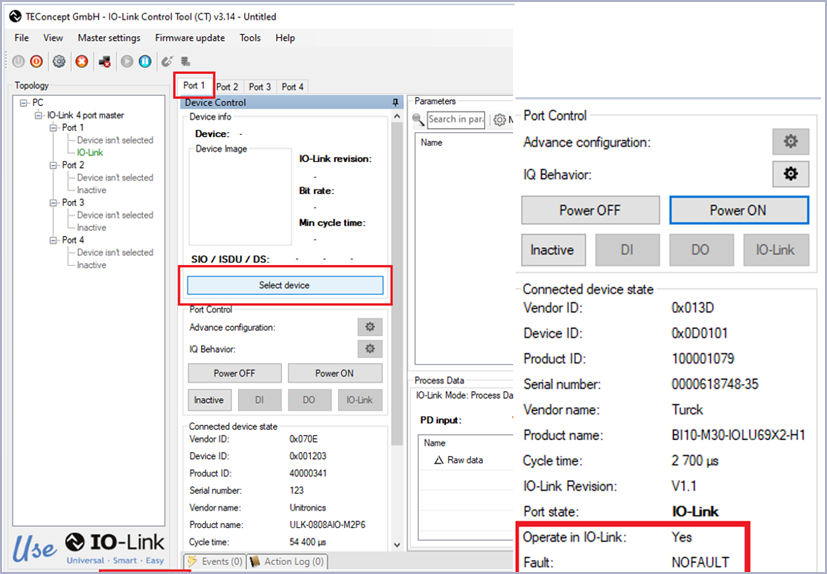
Ensure that your IO-Link device is connected to the Master port and then a select a Port.
Click Select device and choose your device's IODD file; if connection is achieved, you will see the statuses shown in the right of the image below.
Click Read All to upload all parameters to the software; uploaded parameters include identification data, and parameter data.
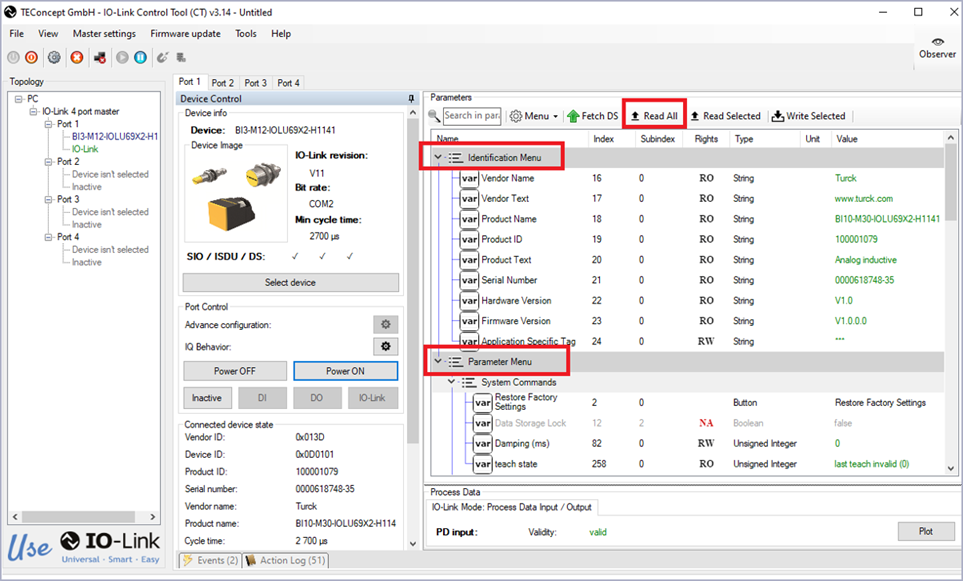
The status and output values can be monitored in real-time below (PDOs cyclic data)
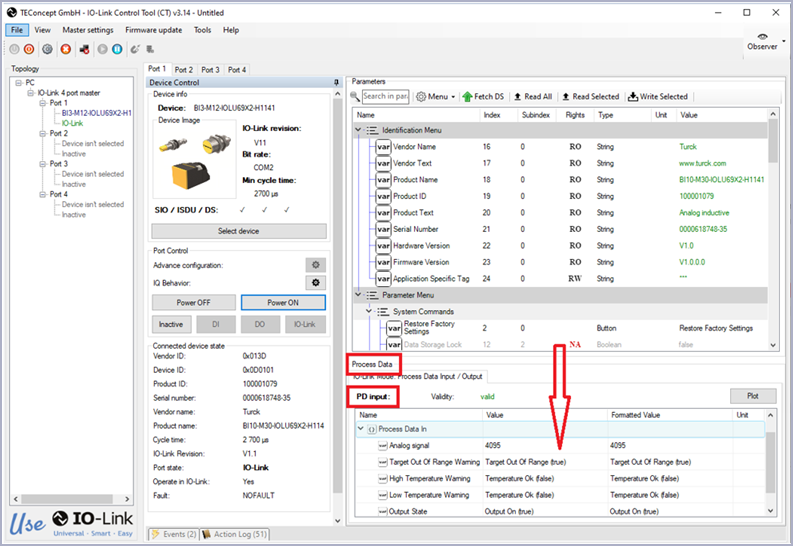
You can change the parameter values according to your needs, and write them to the sensor, those parameters are “settings parameters” and not PDOs that are used in a standard cyclic communication phase with the PLC.

